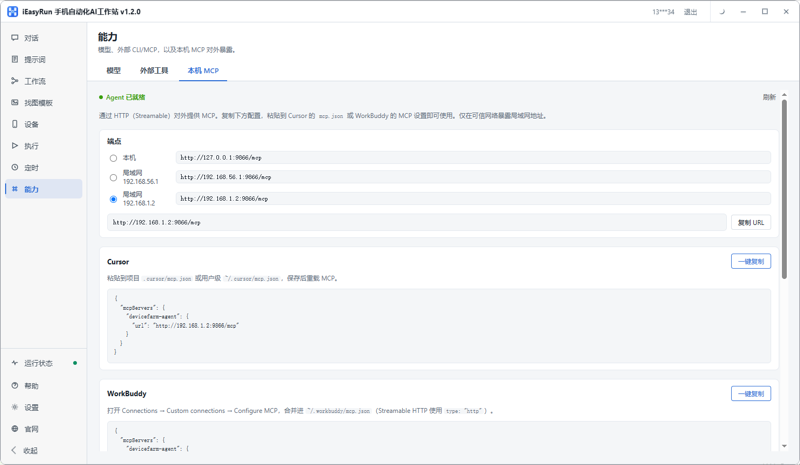
Handing Apple Cluster Control to an AI Assistant: iEasyRun MCP Setup Steps
How do you connect iEasyRun devices to an AI assistant such as Claude or WorkBuddy? Confirm the devices are online, copy the local MCP address, write it into the client config, and verify the link with four query tools, plus the order to check when devices do not show up.
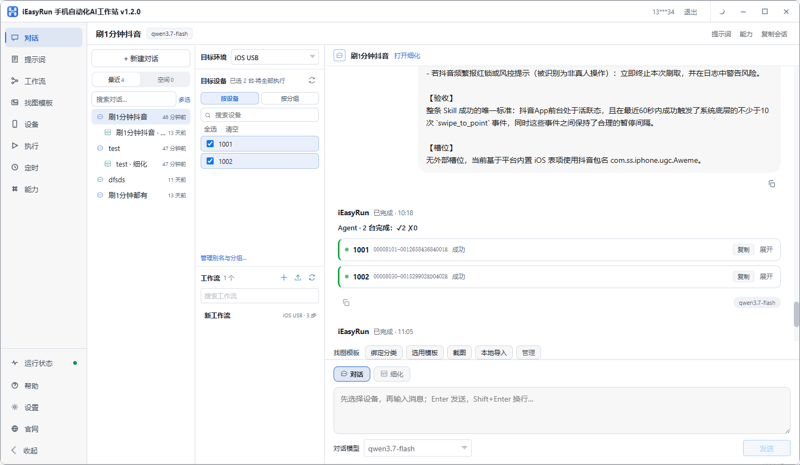
How do you inspect Apple cluster control devices? Steps in iEasyRun for offline and stuck phones
Practical steps for inspecting Apple cluster control devices: first name the three signals you need (online or not, stuck or not, an error or not), then cover adding devices and grouping them, walking online status on the Devices page, asking in chat which devices look suspicious, and using execution history to see which step they stopped on. The end covers how to schedule daily checks and periodic checks.
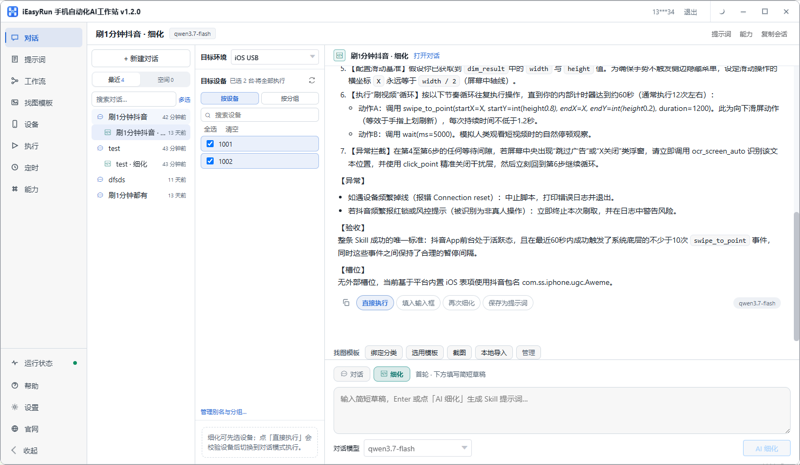
How Do You Do Apple Cluster Control If You Cannot Write Scripts? Getting Started with iEasyRun
An iEasyRun getting-started tutorial for people who do not write scripts: from download and install, scanning phones into the Devices page, giving tasks in plain language on the chat page, switching to AI refine mode when you need it, and saving steps that already run cleanly as a workflow, then how to open the execution log when it gets stuck. These steps can be followed directly in apple cluster control.
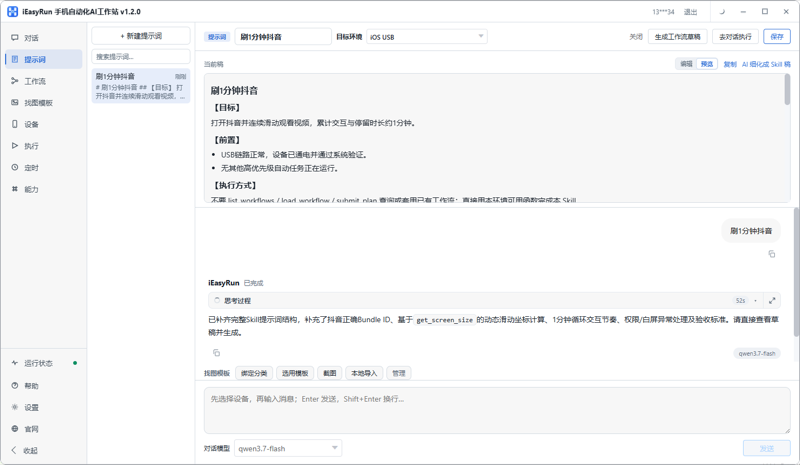
How Do You Handle a One-Off Task in Apple Cluster Control? iEasyRun Steps Without Writing a Script
Do not rush to write a script for a one-off task. This walks through iEasyRun in five steps: decide whether it really is one-off, add the devices to the library and confirm they are online, describe the task clearly in chat, check the execution log after the run, and save it as a workflow if it needs to repeat. The steps in this piece are based on an actual apple cluster control setup.
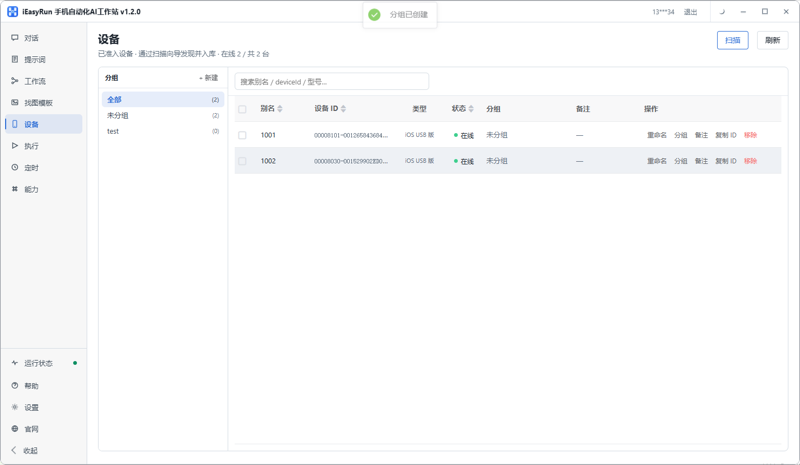
How Do Apple Cluster Control Scripts and AI Split the Work? How iEasyRun Is Set Up
How a team already using Apple cluster control scripts connects iEasyRun: sort out the split between the central control and the AI workstation first, then what each side has to prepare, how to make them see the same batch of devices, how to choose between two ways of doing the same task, and a troubleshooting order for when something goes wrong.
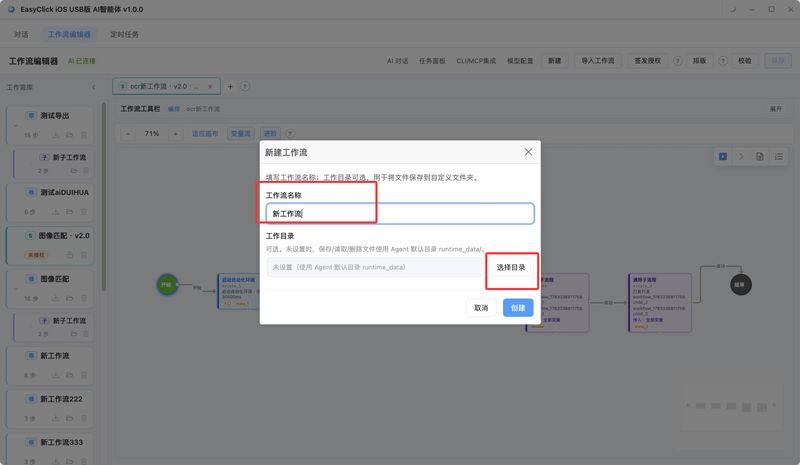
AI Agent Workflow Editor: Save and Export .spk
After you change the canvas, tap Save, or press Ctrl+S. On a Mac that is Cmd+S. When you hand a flow to someone else to run and they must leave the steps unchanged, export the root workflow as .spk.
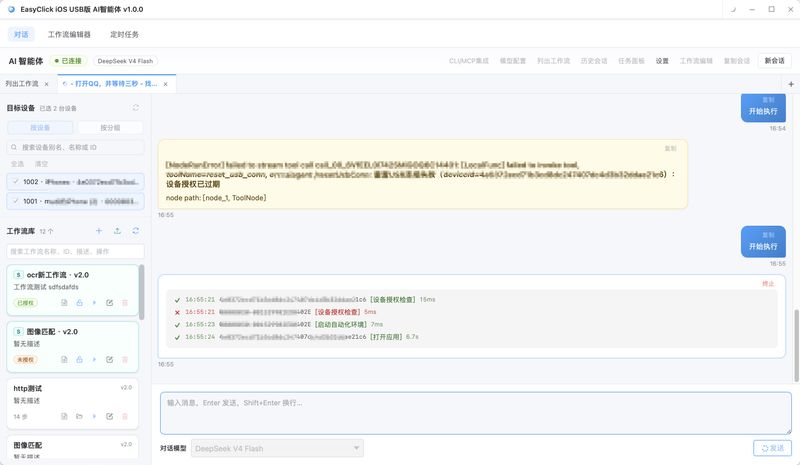
AI Agent Phone Automation: Check the License, the Failed Step, and When to Switch Back to a Script
When an AI agent reaches a real phone, first check whether this device has a USB device license or a mirroring license. On failure, note the device and the step. If that stretch is unstable, switch it back to a fixed script you have already verified.