Apple cluster control uses one computer as the controller, so tapping by hand one device at a time becomes one dispatch and a batch run. The iPhone itself does not need a jailbreak. Teams already running scripts on the EasyClick central control usually have one of two reactions the first time they hear about iEasyRun. One is that they already have scripts and do not need it. The other is whether installing it will collide with the flow they already have. iEasyRun takes the jobs that were never written as a script, or that are not worth writing as a script.
Sort out the split first, and what the central-control side has to prepare
The EasyClick central control handles connections, mirroring (USB, ADB WIFI, LAN WIFI, WAN), bulk device management, and running scripts. Scripts are written in JavaScript, and they support image matching, OCR, and control lookup. iEasyRun 10.6.0 is an AI workstation that runs on a local computer. The site is https://ieasyrun.com . It handles understanding what you say, planning the steps, and driving the real device. There are three entries: chat, workflow, and local MCP. Fixed flows stay in the scripts. Jobs that show up at the last minute, or whose description changes, go in iEasyRun. The two programs face the same batch of phones, and both look at devices from the Devices page:
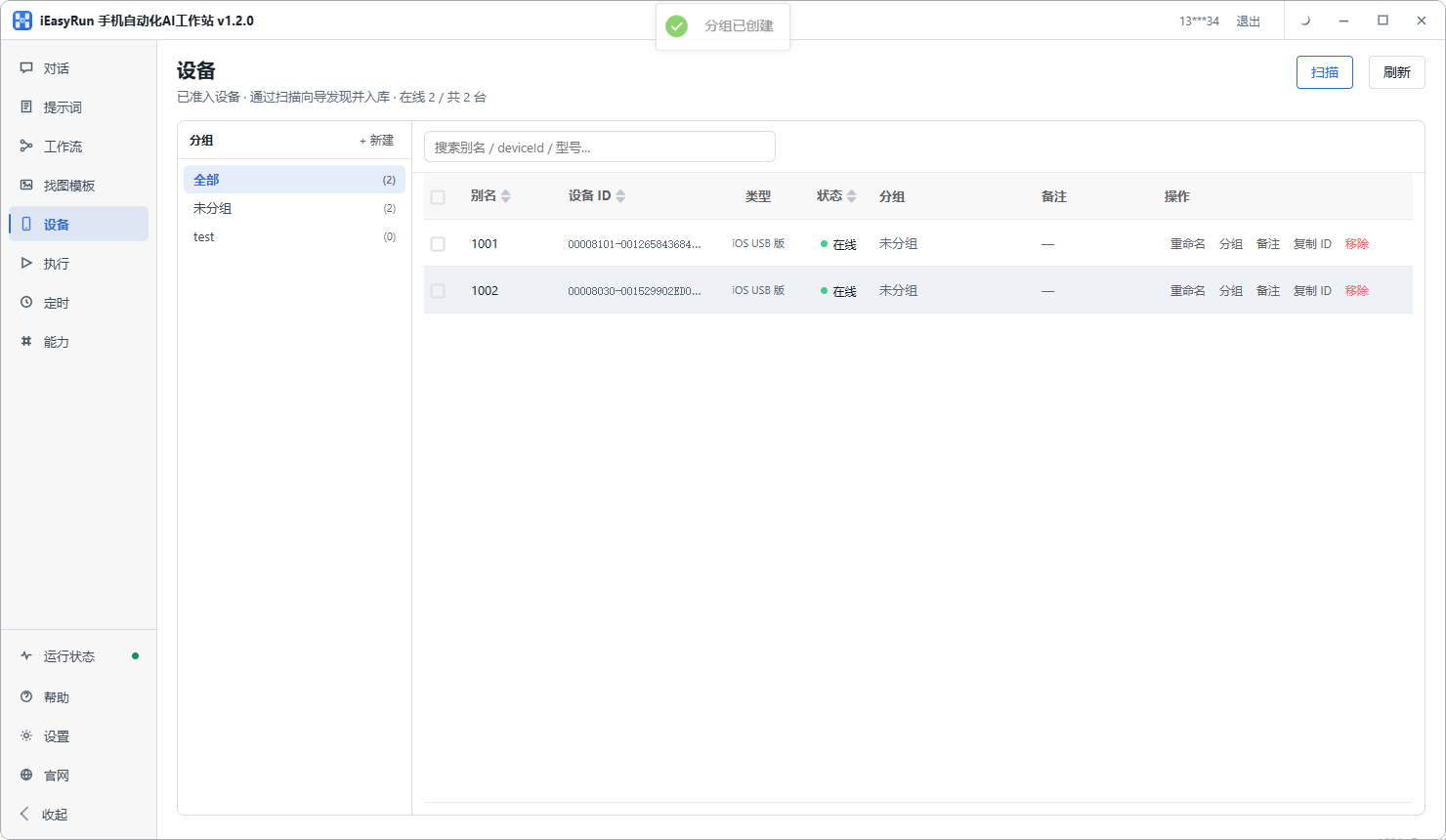
On the Devices page you can scan them into the library, give aliases, and group by purpose. The two programs use the same list.
To drive a real device with AI, the central-control side has to be standing first. For a device to actually run automation, you bind an EasyClick USB device license, bought by device count. Choose the USB device license. A mirroring license cannot run an automation task. The central control itself has to run through first: devices connected, mirroring normal, and at least one script able to go from start to finish. Then settle the device aliases and groups. Both sides share that set of names, so script parameters, AI tasks, and execution logs can line up. After the device count goes up, bandwidth and licenses have to follow. For the sizing, see Apple cluster-control device capacity and operations. Pick the mirroring method by where the devices sit: USB is the steadiest, one machine and one cable; ADB WIFI and LAN WIFI save cables and fit devices that are at hand; WAN fits devices scattered in different places. USB HID without a Bluetooth or OTG board is available from EasyClick iOS USB 10.7.0 (2026-09-08). The phone has to be iOS 17 or later, and it is mutually exclusive with “start automation.” On the install side, iOS 15 or later can use offline main program v7.2.0 or later as the USB automation program, and the official download page has a pre-signed IPA for testing. The offline build supports only iOS 15 or later. From 7.0.0, single-app installs only the main program, and dual-app also installs the proxy IPA. When you sign with your own developer account, an Apple developer account is 688 yuan a year, up to 100 devices, system iOS 12 or later, and the account only handles signing. TrollStore works on iOS 15 through 16.6.1, and the signature drops after the phone reboots. After the central control’s connection method is settled, iEasyRun uses the same devices that are already connected.
On the iEasyRun side, two things. Install the workstation from https://www.ieasyrun.com/docs/install . The iOS USB and wireless tutorials are live, and Android and HarmonyOS are still being prepared. It runs locally and needs no server. The deployment notes are at https://www.ieasyrun.com/deploy . After install, go back to the Devices page, scan the devices into the library, and keep aliases and groups identical to the central-control side. The same machine under different names on the two sides is the easiest mismatch when you troubleshoot. Then configure models on the Capabilities page: the chat model understands what you say, the vision model (VLM) looks at the screen, and both have to be configured before a task runs cleanly.
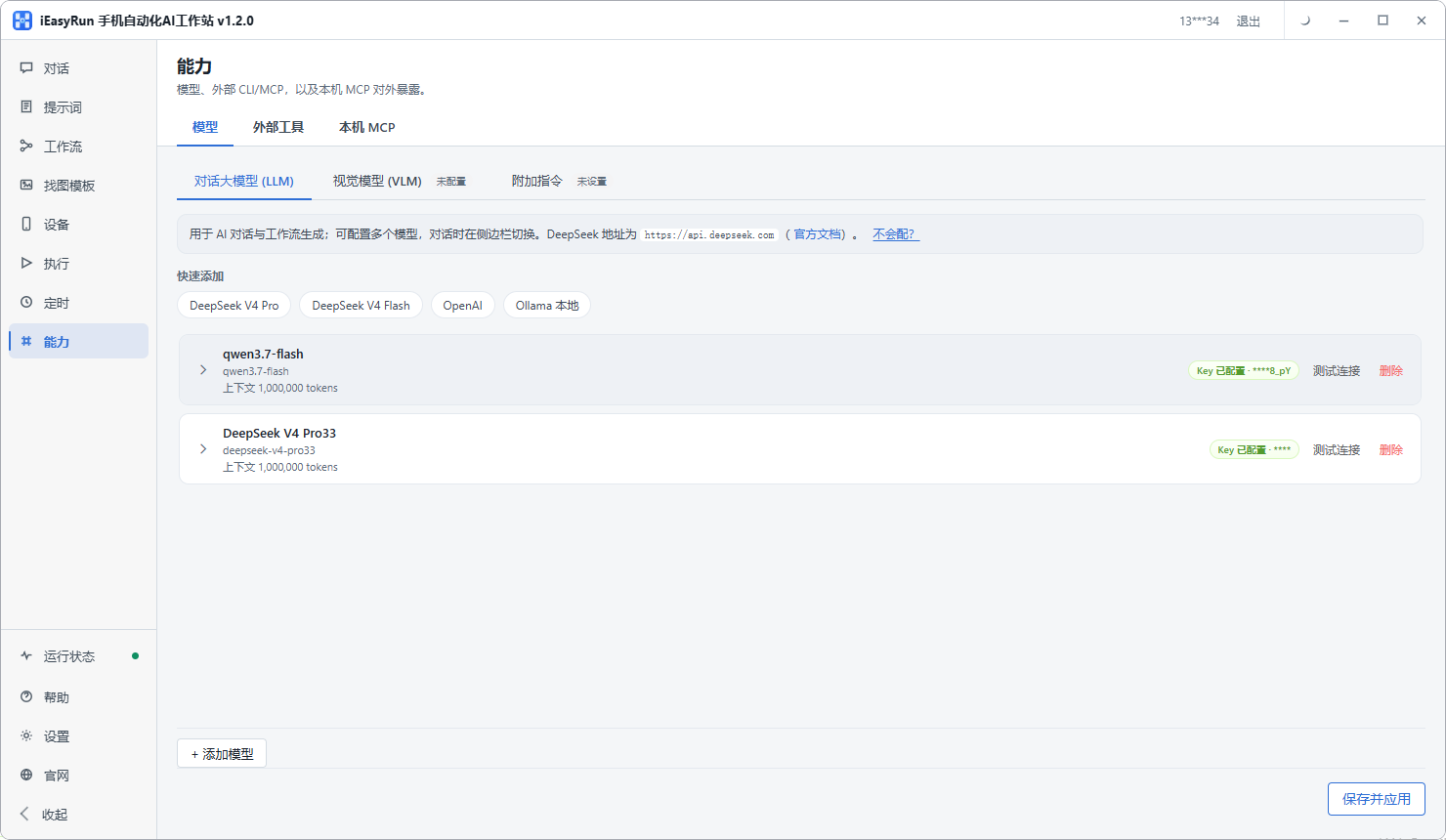
When a task has to tap a position, recognize text, or judge the current state, the vision model’s role is obvious. For a job that is only a few fixed taps, the configuration can stay simpler. Try it against your own task. The Capabilities page can also connect an external CLI and an external MCP Server. Local MCP hands device information to outside assistants such as Cursor and WorkBuddy, and it can only query: list_devices lists devices, list_device_groups lists groups, list_devices_by_groups lists devices by group, and list_workflows lists workflows. Tapping the screen, swiping, and running a workflow cannot be done through MCP. Those go back to chat or a workflow in the workstation.
Two ways to do one task, and the troubleshooting order when something goes wrong
Walk through one concrete case: change the same setting on a batch of devices. The script way is to write a flow, put the device scope in a parameter file, select the devices, double-click the script, and read the log when it finishes. Every device executes the same way, and a change to the flow means editing the script. The chat way is to check the devices on the chat page, write a description, and submit. No code, and the description changes with the task. You have to open a chat every time, so repeating it does not pay. Leave the script for actions that are fixed and run every day. Hand judgement, a description that changes, and last-minute jobs to chat or a workflow. If most accounts in one send follow the same flow and only a few accounts need the copy changed by market, the script can handle the main flow, and the devices that need a judgement can be pulled out and run in chat. A new flow starts on two or three devices, confirms the actions go through and the judgement is right, then rolls out to the whole group. Both sides have schedules. The central control has its own scheduled tasks. iEasyRun has chat schedules and workflow schedules. Those are local: the computer has to be on and the workstation has to be running.
Using both together, check problems in this order. First, whether the device is online, whether mirroring is normal, and whether a cable is loose. An offline device cannot run a task. Next, whether the task description is ambiguous, whether the tap path inside the app is written correctly, and whether the vision model is configured. The execution history shows which action it stopped on. Only then does the script itself come up: whether the image-match template hit, whether the control changed, and whether the app was updated. An offline device is often treated as “the AI cannot do this task.” A glance at online status takes a few seconds, editing a task description takes a few minutes, and digging through a script can start at half an hour. Most problems end in the first two steps.
If you already have a stable set of scripts, and you do not have jobs you cannot state or jobs that show up at the last minute, you can leave it uninstalled for now. Install iEasyRun when the team keeps hitting things the scripts cannot do. The software itself charges nothing, and there is no feature paywall. For an iPhone to run automation, you bind an EasyClick USB device license, bought by device count. The model cost is paid to the provider you choose.
The install entry is https://www.ieasyrun.com/docs/install . To get clear on the script path first, see why cluster-control software should come with automation scripts. For what long-running devices do over time, the maintenance notes cover it. For the full chain of the two working together, see an AI agent controlling a real device.
- iEasyRun site and install: https://www.ieasyrun.com/docs/install
- iEasyRun docs: https://www.ieasyrun.com/docs
- Apple cluster control system: https://ieasyclick.com/apple_qunkong/
- EasyClick developer docs: https://ieasyclick.com/docs/
- Further reading: the complete tutorial on writing iOS scripts with EasyClick, a practical comparison of iOS no-jailbreak automation
About EasyClick: A mobile automation script development platform covering three phone ecosystems: Android without root, iOS without jailbreak, and HarmonyOS. It also offers Apple script writing, Apple cluster control, Android cluster control, remote cloud control, and AI phone cluster control. → Explore all products
Ready to build it for real?
Every approach in this article can be built with EasyClick capabilities on iEasyClick — full documentation, developer tools and automation products, free to try.