One computer pulling dozens of iPhones through work is called Apple cluster control. It does not jailbreak, and it does not install anything on the phone. It injects operation commands into the device from outside. Since 10.6.0 (2026-09-02), the AI agent product is called iEasyRun. The product site is https://ieasyrun.com .
At twenty or thirty devices, you often do not know which one is broken. You start in the morning, the mirroring wall is up, and every screen is lit, and you still cannot confirm that each one finished and that none is sitting on a dialog waiting for a tap. By the time you notice, it is often the next day. Flipping through them by hand, attention is gone by the tenth phone.
An inspection watches three signals, and you check them in order
An inspection has to say what it is judging. Inside Apple cluster control, three signals are worth looking at. First, online or not. The device lost its connection, so the task cannot be sent. That is the outer layer, and the easiest to judge. Second, stuck or not. The device is online, the task is running, and it has stopped on a step. You cannot see that on the Devices page. You have to look in the execution record at how long that step has been sitting. Third, an error or not. The task finished and the result is failure. The reason is also in the execution record: it did not find the element, or the page did not load, and the record says which.
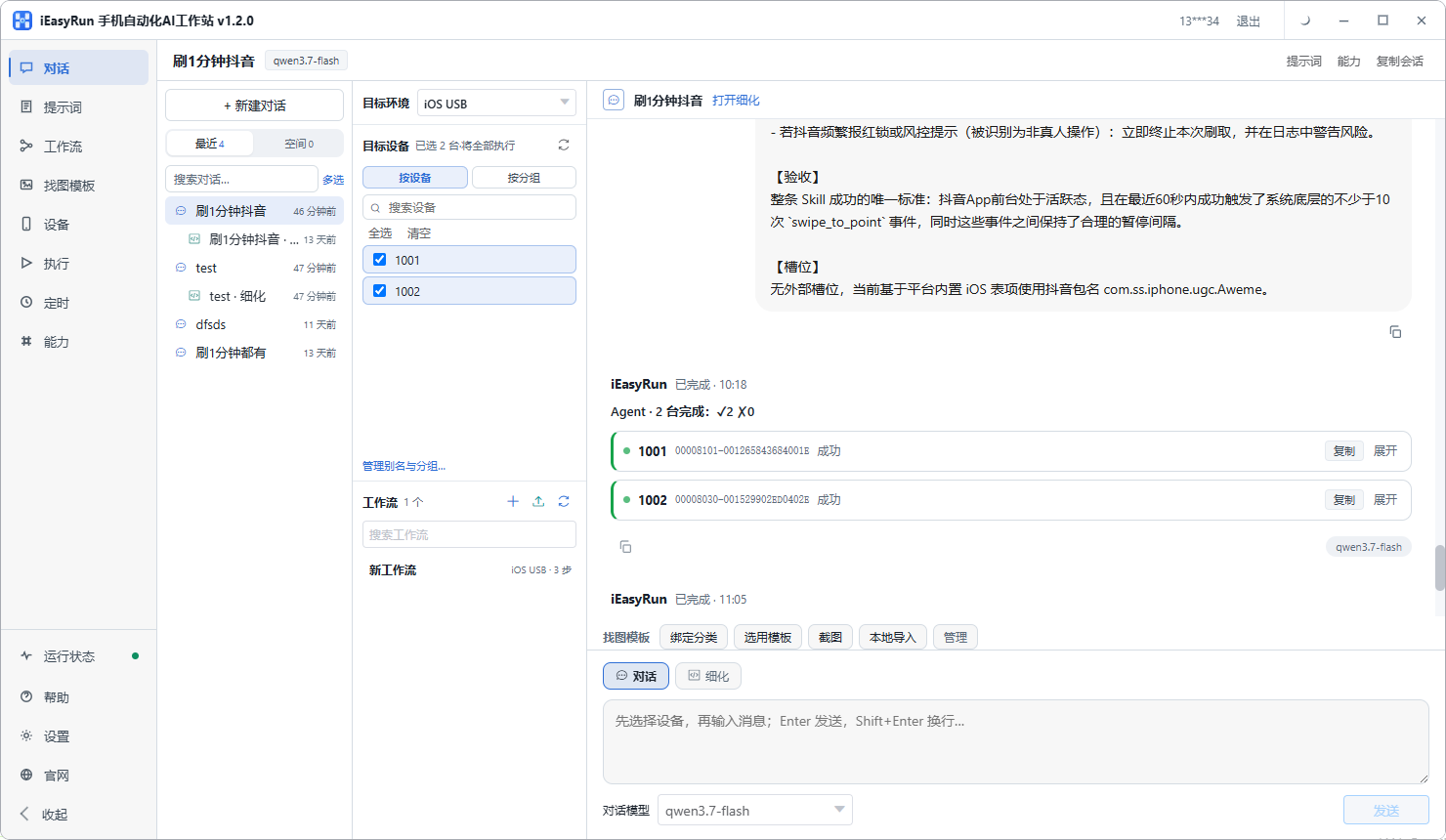
Stuck tasks and errors both land on the execution history page. Look at it first during an inspection. The first two decide whether you act immediately. The third decides how to change the flow next round. Mix them together and you treat a flow change as an on-the-spot rescue.
A real check runs through these steps from start to finish. Start with adding devices. That is what makes the inspection less work. A device list with messy names means you cannot even say which phone is for which job, and attention goes into recognizing devices. The order is: scan on the Devices page and add them, then set aliases that include purpose and a number, such as ins-01 and ins-02, then group by purpose, one group for ads, one for posting, and spares in their own group.
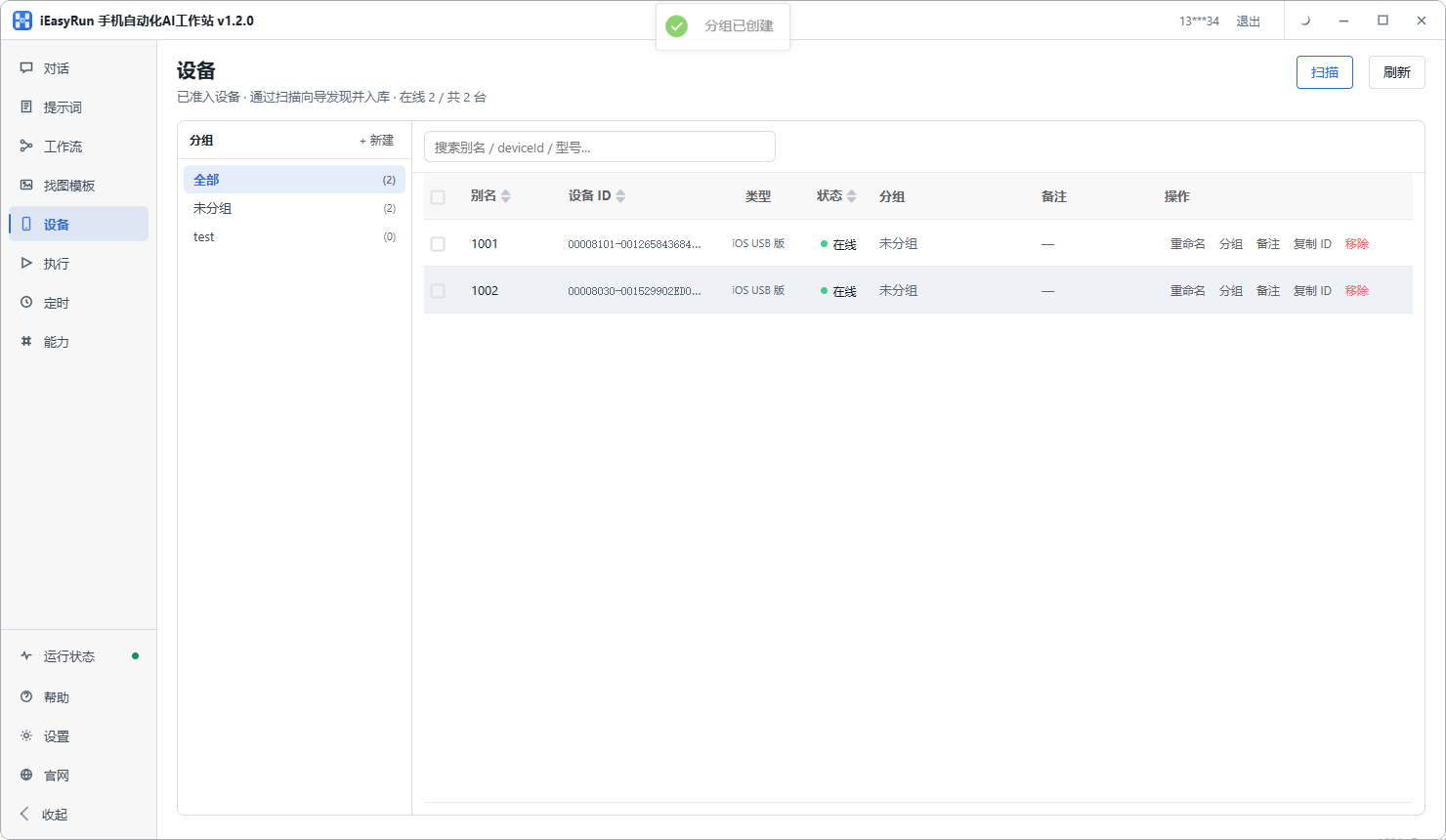
Adding devices and setting aliases both happen on the Devices page. After the scan you can edit them there, with no switching back and forth. Grouping narrows the range. When an inspection finds a problem, first separate a whole group offline from a single phone offline. The two cases are handled completely differently. Once the grouping rule is set, stop changing it. Change it once and devices that lined up with earlier records have to be recognized again next round. Spare phones go into the library too, in a “spare” group day to day. The day a main phone breaks and you swap one in, the status is visible at a glance. Before the device count climbs, lock the naming and the grouping. Apple cluster control device capacity and operations covers that.
The second step is the first thing each workday: open the Devices page and look at online status. An offline device cannot run a task. The task does not go out. If you do not know it is offline, you assume the task is running, wait a long while, and find that nothing happened. If you see one offline, fix the connection first, in this order: is the cable loose, can the USB hub’s power keep up, and is mirroring on USB or on LAN Wi-Fi. After reconnecting, confirm the status is online again. If several go offline at once, suspect the piece they share, such as the hub or the router. If one goes offline, suspect that machine.
The third step: online status shows whether it is there. It does not show whether it is stuck. To find out, asking in chat is faster. In the workstation, select the devices and say what you want in plain language, for example “screenshot the current page of every device in the ads group and tell me which ones are not on the home page,” “check whether these phones are all stopped on the login page,” “run the first two steps of this workflow and see which step it sticks on.” Ask one thing at a time, and keep the range small. “Are all the devices fine?” usually comes back vague. “How many phones in the ads group are off the home page right now?” is an answer you can use. With few devices, a glance at mirroring is faster than asking. At twenty or thirty, the eye cannot sweep them, and handing the sweep over is steadier.
The last step is locating the cause. Execution history keeps the result and the error of every run. When you read it, look at two places: which step the failures cluster on, and which devices failed. The same step failing on several phones usually means the step itself. Common cases are a stale image template, a redesigned page, or a wait that is too short. One change then gets the whole group through. If the same step fails on only one phone, leave the flow alone and pull that phone out for a rerun. If it still fails, run the same steps on another machine. Those two steps usually separate a machine problem from a flow problem. Once you have the cause, write the conclusion down in one place, even if it is one note next to the task name. The next time you see the same error, you do not have to reason it out again. Reading the records also has an order: scan that day’s records by time and pick out the failures, then go back and read in detail. Reading line by line from the start makes it easy to miss the step where the failures actually cluster.
What to look at every day, and what to look at once a week
A full pass every time spends all the time on looking. For devices that are running tasks, check online status once when you start and check the execution record once before you finish. Those two passes are required. You do not have to keep watching in between. Devices that are not running, and spare machines, need a pass once a week. They fail less often, and a failure does not affect that day’s work. If you want it to run when the time hits, the workstation has schedules, in two kinds: a chat schedule and a workflow schedule. Local scheduling has a condition: the computer has to keep the workstation open. Shut down and it will not run.
Past that, it is a question of scale. The full path of an AI agent controlling a real device covers the path from understanding the request to running on a real phone. Read it before the device count climbs. That is less work than filling the gap after something breaks.
Related resources
- iEasyRun site and install: https://www.ieasyrun.com/docs/install
- iEasyRun docs: https://www.ieasyrun.com/docs
- Apple cluster control system: https://ieasyclick.com/apple_qunkong/
- EasyClick developer docs: https://ieasyclick.com/docs/
- Further reading: How to calculate cluster control device capacity, How to configure scheduled tasks for Apple cluster control
About EasyClick: A mobile automation script development platform covering three phone ecosystems: Android without root, iOS without jailbreak, and HarmonyOS. It also offers Apple script writing, Apple cluster control, Android cluster control, remote cloud control, and AI phone cluster control. → Explore all products
Ready to build it for real?
Every approach in this article can be built with EasyClick capabilities on iEasyClick — full documentation, developer tools and automation products, free to try.