The first time you open the agent in the console, you do not have to finish the whole task that afternoon. Confirm which kind of license this phone was bought with, then look at the step that turned red, and then decide whether that stretch should still be left to the model.
From console 10.6.0 (2026-09-02), the AI agent was renamed iEasyRun. The product site is https://ieasyrun.com .
Which kind is bound to this device in the license center
Tapping the phone directly in AI chat, a trial run in the workflow editor, a batch run in the task panel, and an imported flow all go through the console underneath. Those steps need a USB device license.
A USB mirroring license is a different card. It is for screen mirroring, operating the UI with a mouse, and inserting video. With only a mirroring license, the device can show a picture, and automation taps and screenshots still fail. If the license center says expired, the first split is which kind expired.
Binding is in the console at License center → Batch license: device ID on the left, card number on the right. Or open https://uc.ieasyclick.com , go to My iOS Devices → Batch bind license, then return to the console license center and Refresh license.
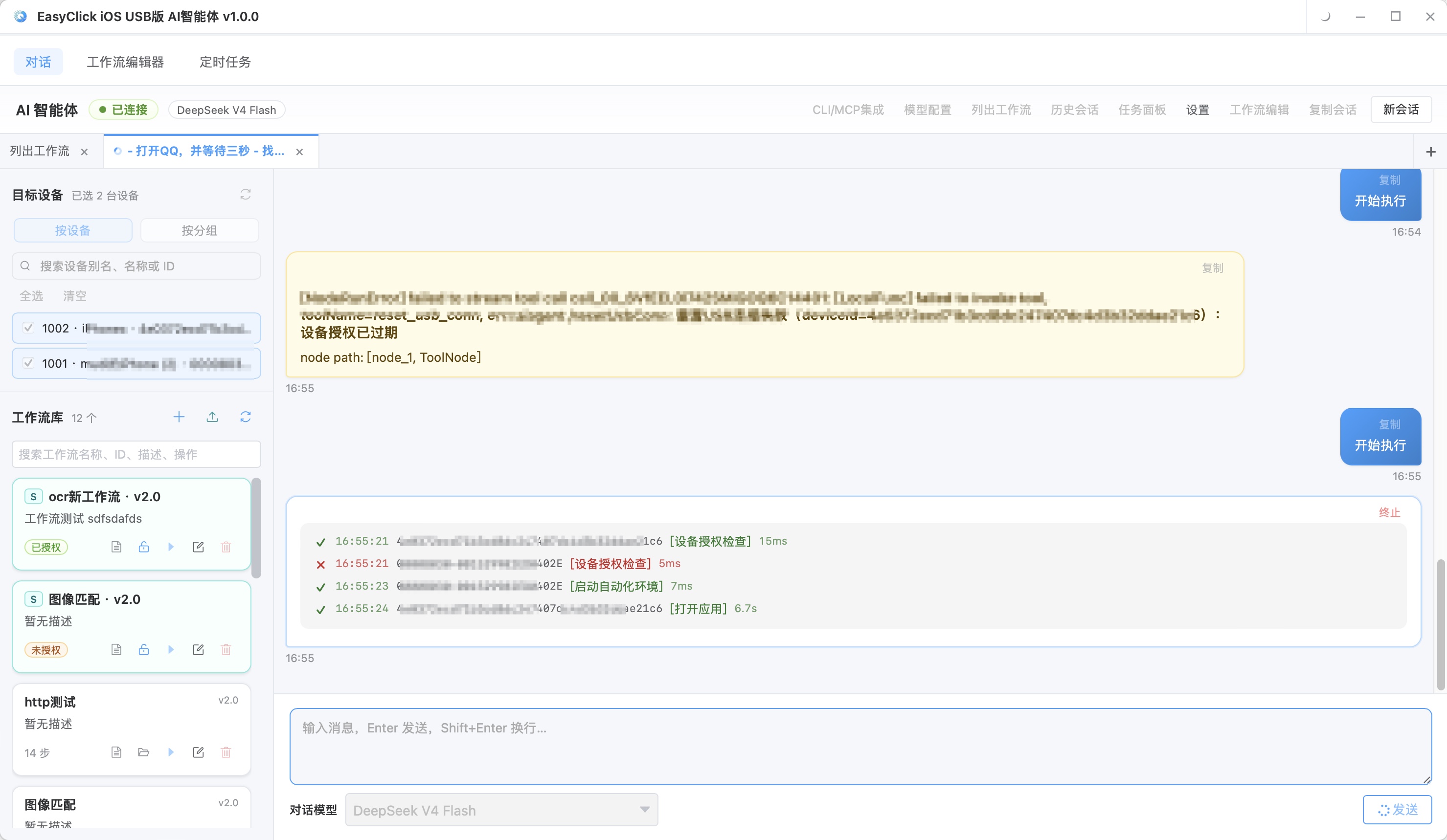
The flow also has a step called device license check. A type parameter of 1 checks the USB license. A type of 2 checks the mirroring license. When you run the agent, look at 1.
When the environment is not ready, failures bunch up on taps and screenshots
Once the license is right, look at which environment this flow uses.
When it includes UI taps, swipes, input, automation screenshots, or node capture, the phone needs an automation service installed and signed. On iOS 15 and later, the offline main program v7.2.0 and later can serve as that automation program. Fill in the proxy bundleID in the console. After Start automation, the service status should be Yes. The developer image has to be configured first as well.
If the flow only has no-automation screenshots, no-automation OCR, or the occasional open-app step that does not depend on the automation environment, you can leave automation off at the start. The moment a later step has to tap the UI, the environment has to be brought up first.
Bluetooth or OTG steps are another path: the board has to be bound on the device, and Test Bluetooth BLE has to pass. Configure that path only if the flow contains those steps. The same phone can have the automation program and a Bluetooth peripheral installed at the same time. Whichever link a step uses, that environment has to exist first.
The large model is used only in chat and when you let AI write a flow. A workflow that is already saved does not consume chat tokens on a trial run or a formal run.
This device has to show as connected in the device list. If any of the items above is empty, the afternoon starts with a license failure, a tap that does not land, or a screenshot that does not respond.
When a step fails, note the device, the step, and the error
For a trial run, pick one online device. Do not drop it onto the batch of phones that are already working. On the canvas, running, success, and failure are highlighted separately. Open that step to see the log and the input and output.
Each task in the task panel has a status: waiting, running, completed, failed, partial success, paused. Expanded, each device has its own progress, including the current workflow, the current step, and an error note on failure. From the task panel, Workflow layout can replay this run, and the failed step is marked with the reason.
If it is stuck, or you want to cancel, use Force stop. In the editor you can run only the selected steps, or retry from a given step. Where it jumps after a failure follows the failure handling you drew in advance.
If you have already checked the same environment and the same step fails again, keep that step’s error note and stop for the afternoon. If the status is Paused, the flow usually has a step waiting for a person. Finish it on the phone, go back to the task panel, and click Continue. Do not treat it as a crash and rerun the whole stretch.
When to switch this stretch back to a fixed script
If the page and the order will not change over the next few days, for example open a fixed app, wait, and tap a position you have already verified, a fixed script means one fewer model call and one fewer on-the-spot step change. If pay, delete, or send must be confirmed by a person, hold them in the script for a person to unblock, or make them a pause-and-wait in the flow.
While you are still aligning the page, and elements keep moving, leave it in the editor for trial runs. Look at the current UI with a screenshot or a node, change it, and then save. Before saving you can draw slowly. Before a trial run, the environment has to already be in the state from the section above.
The close of the day is these three lines: this device is bound to a USB device license and it has not expired; the failed device, the failed step, and that error sentence are still there; the stretch you are not sure about has been stopped, or switched back to a fixed script you have already tried.
About EasyClick: A mobile automation script development platform covering three phone ecosystems: Android without root, iOS without jailbreak, and HarmonyOS. It also offers Apple script writing, Apple cluster control, Android cluster control, remote cloud control, and AI phone cluster control. → Explore all products
Ready to build it for real?
Every approach in this article can be built with EasyClick capabilities on iEasyClick — full documentation, developer tools and automation products, free to try.