Apple cluster control is one computer managing a batch of iPhones: no jailbreak, with touch and keys sent into the phone as external input. This piece is about how to get that running with iEasyRun when you cannot write scripts.
You have a batch of iPhones, the same things have to be tapped every day, and nobody on the team can write a script. The devices are connected, the central control is open, and the work is stuck on who writes that code. iEasyRun 10.6.0 is an AI workstation that runs on your own computer, locally, with no server. The site is https://ieasyrun.com . You type the task in plain language, it splits the steps, and it drives the real device to execute them.
For an iPhone to actually run automation, you also bind an EasyClick USB device license, bought by device count. On the install side, iOS 15 or later can use offline main program v7.2.0 or later as the USB automation program, and the official download page has a pre-signed IPA for testing. The offline build supports only iOS 15 or later. From 7.0.0, single-app installs only the main program, and dual-app also installs the proxy IPA. USB HID without a Bluetooth or OTG board is available from EasyClick iOS USB 10.7.0 (2026-09-08). The phone has to be iOS 17 or later, and it is mutually exclusive with “start automation.” When you sign with your own developer account, an Apple developer account is 688 yuan a year, up to 100 devices, system iOS 12 or later, and the account only handles signing. TrollStore works on iOS 15 through 16.6.1, and the signature drops after the phone reboots.
From installed to running: library, dispatch, refine, workflow
Go to the install page and pick a build first: https://www.ieasyrun.com/docs/install . iOS currently has two install tutorials, USB and wireless, and both are live. The Android and HarmonyOS tutorials are still being prepared, and for now you also enter from the same page to pick a build. After install, open it. The workstation has three entries: chat, workflow, and local MCP. Day to day, the first one is used the most.
Then the Devices page, four steps: scan, add to the library, give an alias, group. After a phone is scanned in, give it an alias that shows the purpose, such as op-a01 or shop-b02, then group by purpose. An offline device cannot run a task. After they are in the library, look at online status first, and deal with anything dropped before you go on. The EasyClick central control handles connections, mirroring, bulk device management, and running scripts. iEasyRun handles what you say, planning the steps, and driving the real device. Fixed flows stay in the central-control scripts. Jobs you can describe and have not written as a script go in iEasyRun.
Once the devices are in the library, go back to the chat page:
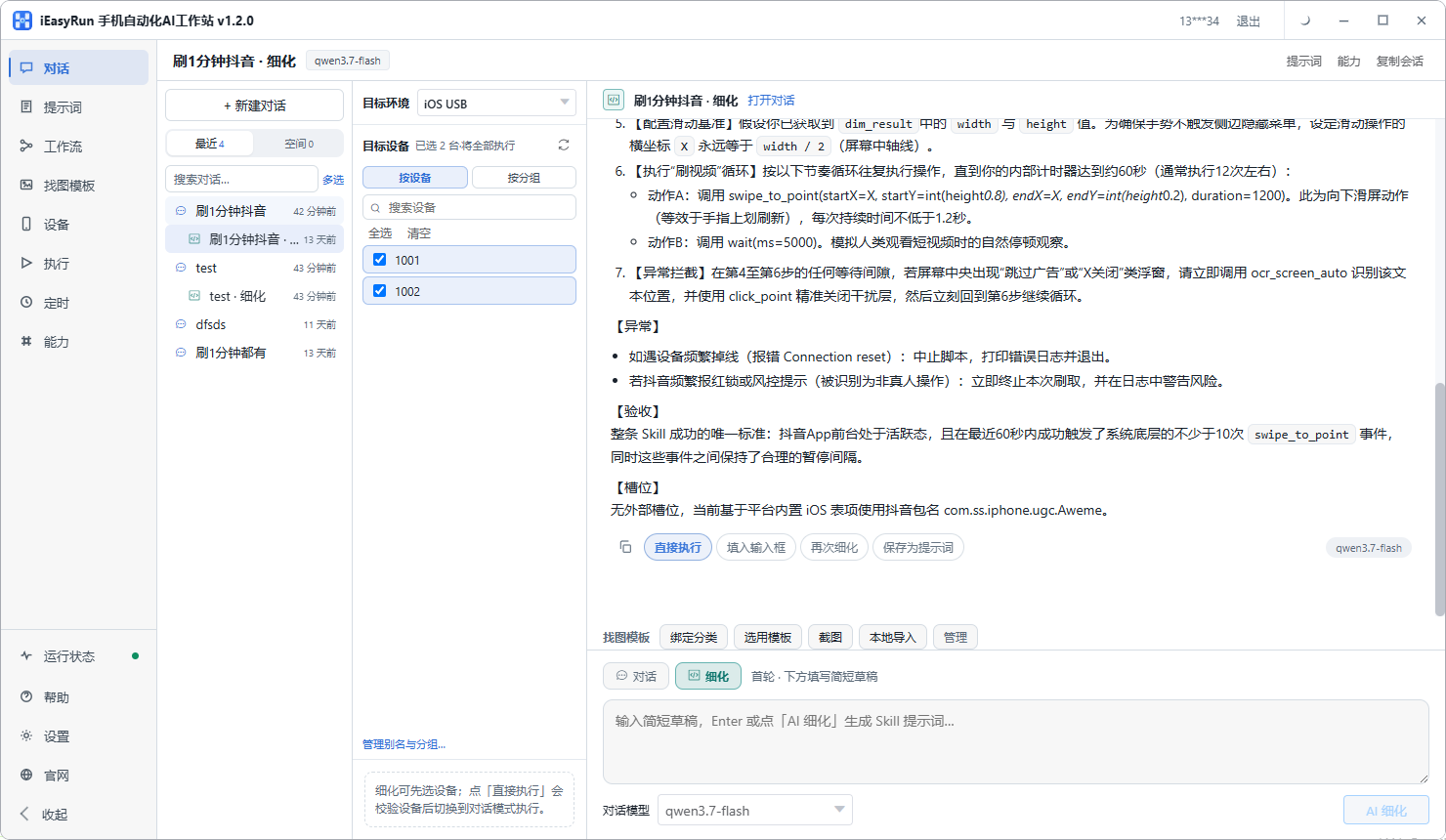
The left side picks devices and existing workflows, the right side is what you want it to do, and the middle is the execution. The task has to be written down to the actions. A line like “help me maintain the account” will not run. Change it to “open Settings, go to General, then Software Update, return when you see that it is already the latest version, and stop on the Home Screen when done,” and it knows which app to open, which positions to tap, and what counts as finished. One task states at least four things: which devices it runs on, which app to open, the order of actions in the middle, and the condition that counts as done.
Some jobs you have not thought through yourself, such as “publish all the recent new products.” Skip forcing a description. Switch to AI refine mode. It will ask back which accounts to publish to, how many items each account gets, where the assets come from, and whether there should be a gap between two items. After you answer, it hands back a task description that can run directly. Dispatch while the request is still fuzzy, then edit the description when the result is wrong, and a few round trips is slower. After the conversation is clear, dispatch the refined result directly.
If the same thing has to be done again and again, skip opening a chat and explaining it every time. After it runs cleanly once, save it as a workflow. On the workflow side you can do three things: manage existing flows in the workflow library; lay steps out on the canvas, adjust the order, and add conditions; or let AI collaborate on a draft, which you then edit by hand.
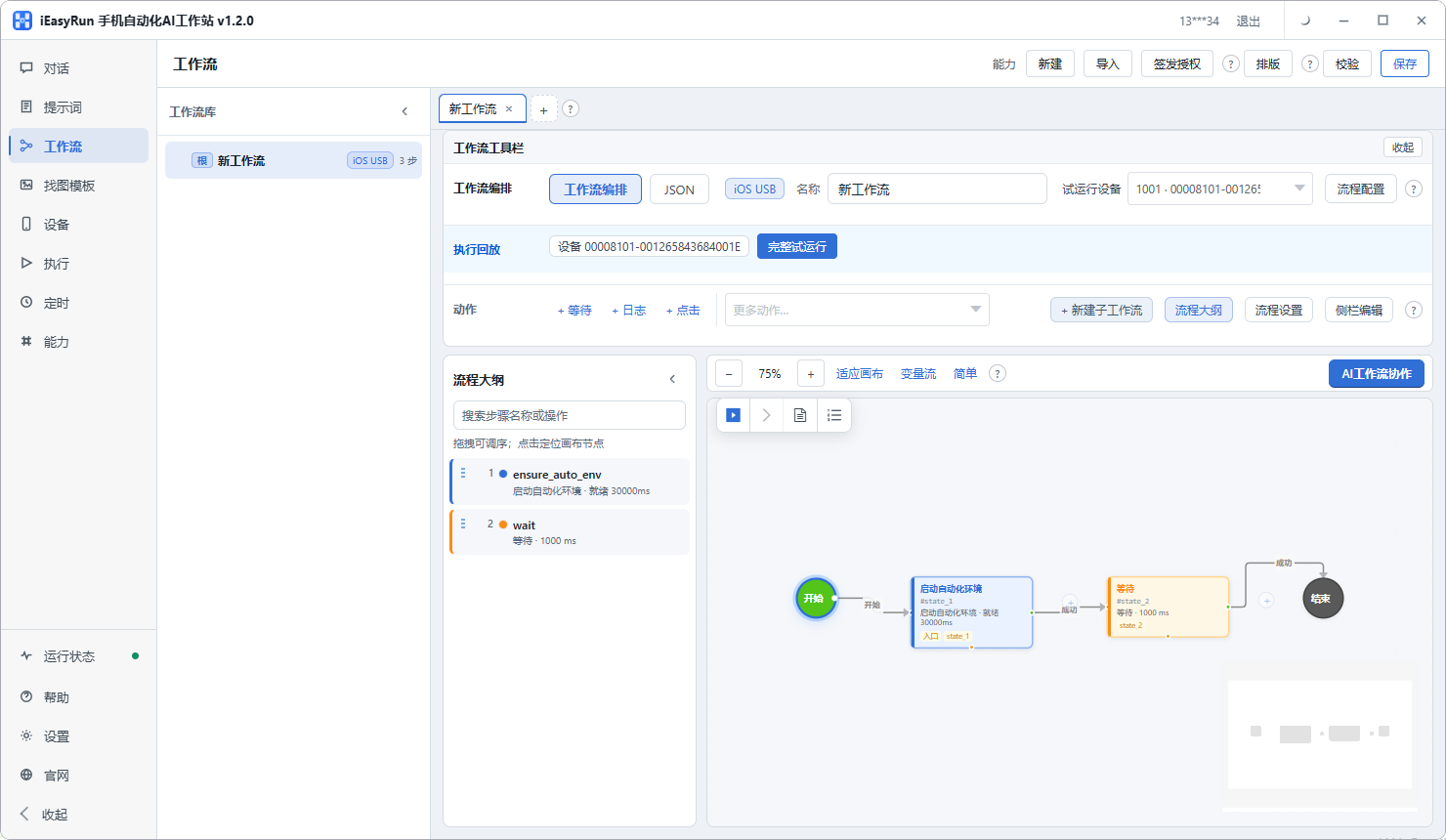
When you save it, give it a name a person can read, such as “daily check - login state” or “new-product post - publish.” A vague name, and three days later you cannot remember what it does. Repeated work goes through a workflow, which saves opening a chat every time. The model cost is paid to the API provider you choose.
When it sticks, look at the execution log first, then the boundary and the cost
When a run goes wrong, look at the execution history first. The result and the error of every run stay there, with which device and which step it stopped on. If a device dropped, go back to the Devices page, look at online status, fix it, and run again. If the button on the screen was not found, capture the button icon with an image-match template, and the next time it looks for that. If the app updated and the page structure changed, go back to the task description and change the tap path. Prompts store the task descriptions you use often, and on another device you change a few words.
Scheduling splits into chat schedules and workflow schedules, and both are local. When the time comes, the computer has to be on and the workstation has to be running. If the computer is asleep, the task will not get up on its own at the scheduled time.
Work with fixed actions, simple judgements, and a need to run again and again is a good fit to hand over. Flows that need complex logic, have to connect to an outside system, or are tight on timing are steadier as a script. If you are unsure, trial-run on two devices first, and roll it out after it runs cleanly. iEasyRun is free to use right now. The software itself charges nothing, and there is no feature paywall. For an iPhone to run automation, the USB device license is bought by device count. The model cost is separate, paid to the API provider you choose.
To start, enter from the install page: https://www.ieasyrun.com/docs/install . To see what this setup looks like when it is running, read the full flow of an AI agent controlling a real device. For the script path, see the tutorial on writing iOS scripts with EasyClick. For how to estimate device count, see measured Apple cluster-control device capacity.
- iEasyRun site and install: https://www.ieasyrun.com/docs/install
- iEasyRun docs: https://www.ieasyrun.com/docs
- Apple cluster control system: https://ieasyclick.com/apple_qunkong/
- EasyClick developer docs: https://ieasyclick.com/docs/
- Further reading: a practical comparison of iOS no-jailbreak automation, effects and maintenance of running a cluster-control system long term
About EasyClick: A mobile automation script development platform covering three phone ecosystems: Android without root, iOS without jailbreak, and HarmonyOS. It also offers Apple script writing, Apple cluster control, Android cluster control, remote cloud control, and AI phone cluster control. → Explore all products
Ready to build it for real?
Every approach in this article can be built with EasyClick capabilities on iEasyClick — full documentation, developer tools and automation products, free to try.