Apple cluster control is one computer managing many iPhones. It does not change the system and it does not install a configuration profile. It drives devices by injecting touches and key presses. USB HID starts with EC iOS USB 10.7.0 (2026-09-08). It does not use a Bluetooth or OTG board. The phone needs iOS 17 or later, and it is mutually exclusive with “Start Automation.”
Open the workstation, copy the address, and send the device information out
From 10.6.0 (2026-09-02), the AI agent became the separate product iEasyRun, at https://ieasyrun.com . The workstation keeps a local MCP that gives the device list, groups, and workflow list to an outside AI assistant, such as Claude or WorkBuddy. The assistant can answer “which devices are there now.” Tap, swipe, input, and running a workflow are not among these four query tools. Those go back to chat or a workflow in the workstation.
If the workstation is closed, or the devices are not connected, the outside assistant has nothing to query. iEasyRun runs on this machine and does not need a server. After you open the workstation, scan on the Devices page, add devices to the library, give them aliases, and group them by purpose. Offline devices cannot run tasks, and they are outside what can be queried. Connect them back first. If dozens of devices all keep the default name, neither a person nor the assistant can match them. Naming and grouping are covered in Apple cluster control device capacity and operations.
Leave the workstation open, then open the capabilities page. That page is where models are configured. The chat model and the vision model are both chosen here. The local MCP switch and address sit a little further down the same page. Find it and click copy.
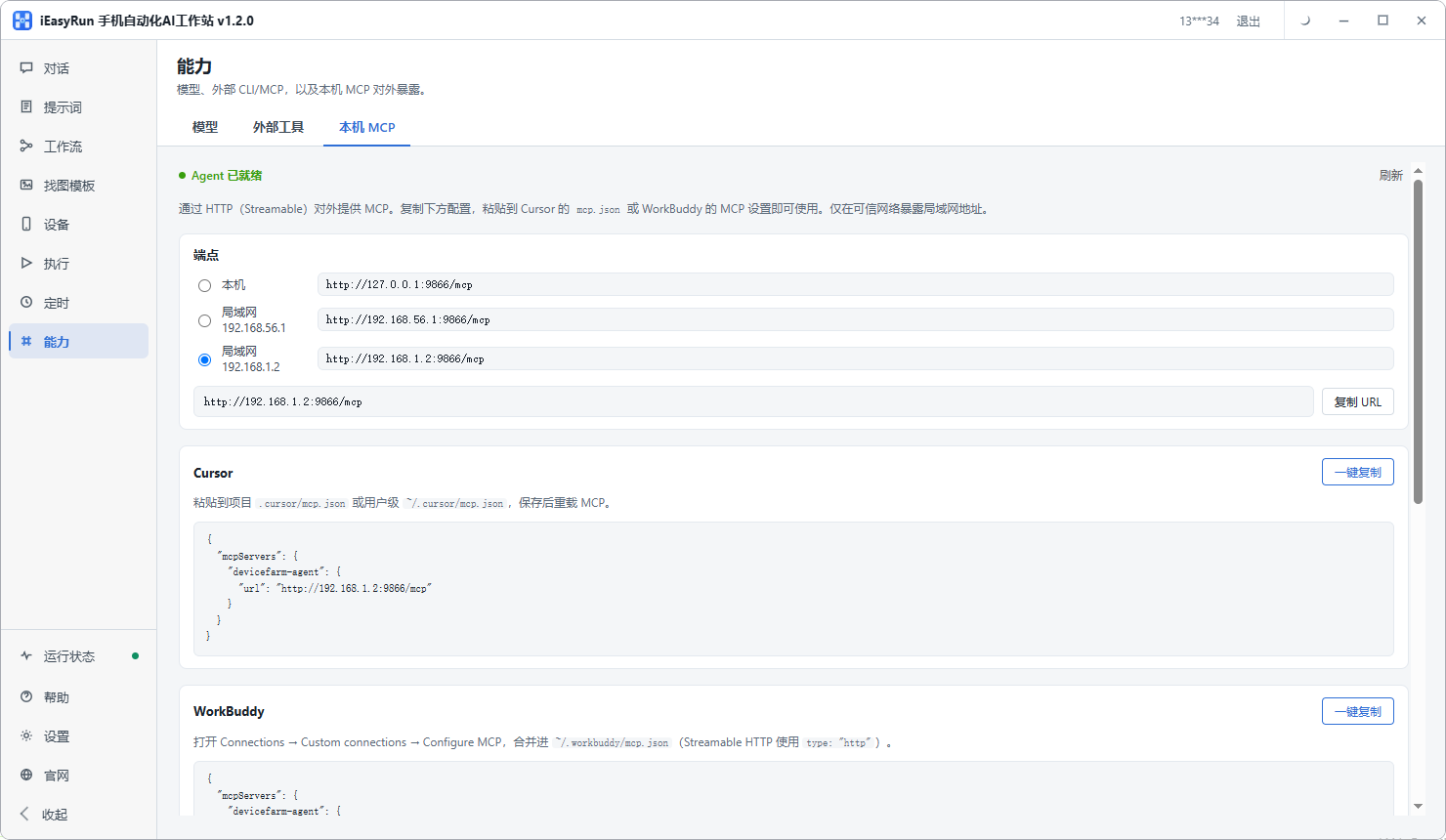
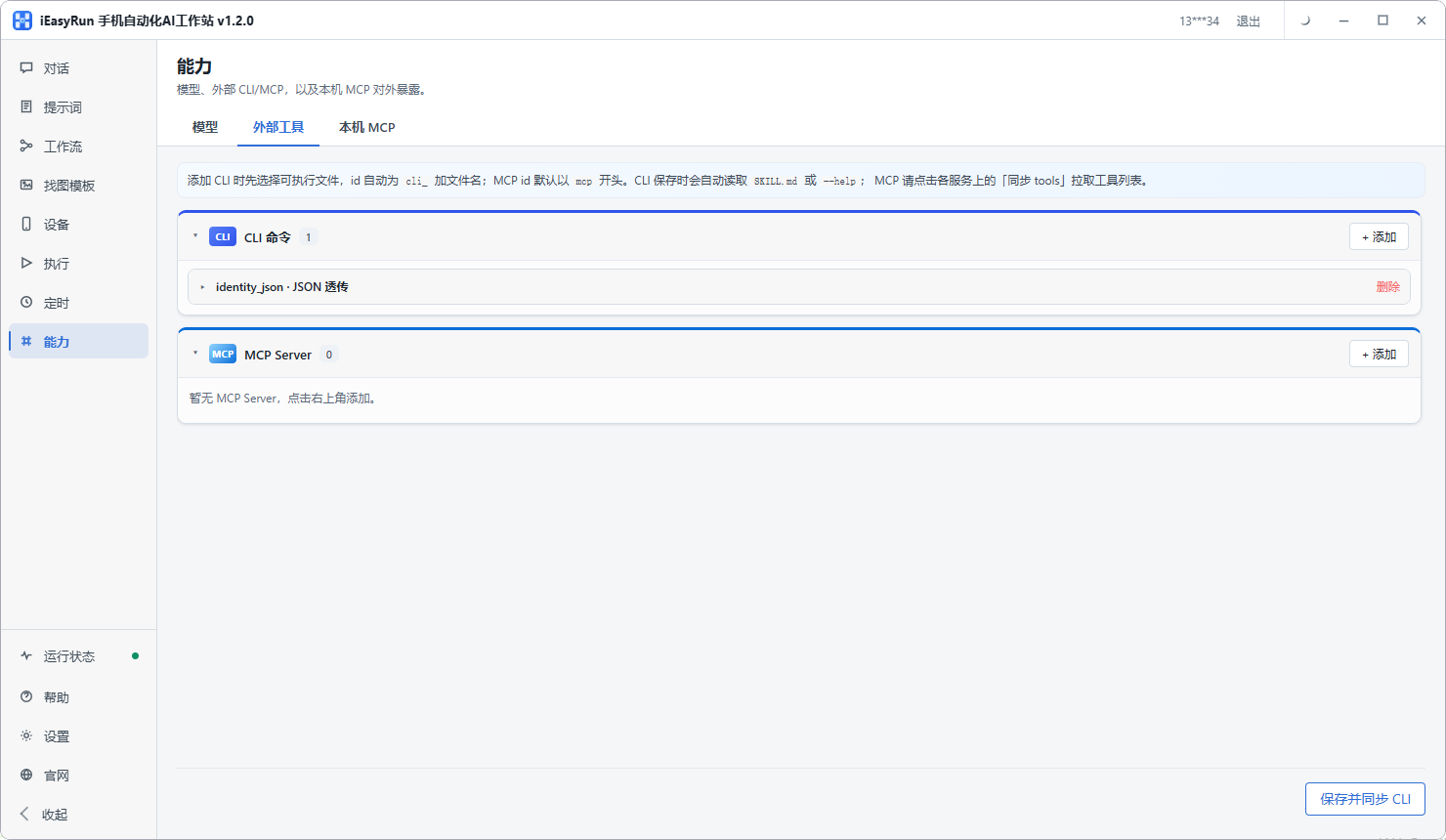
The default address is http://127.0.0.1:9866/mcp. Click the copy button beside it. Do not type it by hand. It is valid only on this computer. On another computer, copy it again. The same page can also connect an external CLI and an external MCP server. Local MCP gives the workstation’s device information to an outside assistant. An external MCP server brings an outside service’s capabilities into the workstation, for the AI inside the workstation. They are two places on the capabilities page.
Write it into the client config, and verify the link with four query tools
Do not paste the address into the chat box. The client reads an MCP config file. Field names differ a little by client. The shape is roughly this:
{
  "mcpServers": {
    "ieasyrun": {
      "url": "http://127.0.0.1:9866/mcp"
    }
  }
}
Whether you write url, or command plus args, follows that client’s own docs. Do not copy someone else’s screenshot. A wrong field often has no clear error. It simply does not connect. The name in the config (ieasyrun above) is yours to choose, as long as you can tell what it is. If the client already has other MCP entries, add a block and keep the existing ones. One missing brace or one extra comma makes the whole file unreadable. After the edit, check indentation and punctuation, save, and restart the client. The config is read at startup. Without a restart it is still the old config. WorkBuddy’s entry is in settings. If you cannot find it, search for mcp. Some clients split config into local services and remote services. A local address goes in the local column.
After the restart, do not guess. Ask one question you can verify, such as “list the devices now.” If device names and status come back, it is connected. If they do not, see the next section. iEasyRun MCP exposes only four query tools. It is worth writing them down:
list_devices: list deviceslist_device_groups: list device groupslist_devices_by_groups: list devices by grouplist_workflows: list workflows
All four are reads. You can ask “how many devices are in the posting group now.” You cannot ask it to tap, swipe, or run a workflow. Ask list_devices first. If it works, the other three use the same interface, so ask them one by one. If it does not work, do not try the other three yet.
How to debug missing devices, and the boundary of this setup
If the answer is empty, or it cannot connect at all, check in this order. First see whether the workstation is still running. If the computer slept, the workstation was closed, or the process exited, MCP is connected to a service that is already gone. Then see whether the devices were added to the library and whether they are online. If they were not added, or they are offline, the outside cannot see them either. Then check the address. The port is the easiest part to copy wrong. Use the copy button. Then confirm the client was restarted. If all four pass and it still fails, close the workstation and the client and open them again. Install steps are in the iEasyRun install docs.
MCP can query devices, groups, and workflows, which helps when you are writing code or docs and want to check the list. Tap, swipe, input, and running a workflow go back to the workstation: give the task in chat, or arrange it under Workflows, pick devices, and trial-run. Execution notes are in Chat and Workflows. The full operation chain is in The full flow of an AI agent controlling a real device.
Related resources
- iEasyRun site and install: https://www.ieasyrun.com/docs/install
- iEasyRun docs: https://www.ieasyrun.com/docs
- Apple cluster control overview: https://ieasyclick.com/apple_qunkong/
- EasyClick developer docs: https://ieasyclick.com/docs/
- Further reading: A practical no-jailbreak cluster control guide, How to calculate cluster-control device capacity
About EasyClick: A mobile automation script development platform covering three phone ecosystems: Android without root, iOS without jailbreak, and HarmonyOS. It also offers Apple script writing, Apple cluster control, Android cluster control, remote cloud control, and AI phone cluster control. → Explore all products
Ready to build it for real?
Every approach in this article can be built with EasyClick capabilities on iEasyClick — full documentation, developer tools and automation products, free to try.