The first time you tap run and the phone does not move, you usually have not reached the script yet. Three items keep showing up in the install notes: trust was not tapped, the Bundle ID used for signing collided, and automation in the central control did not turn to Yes.
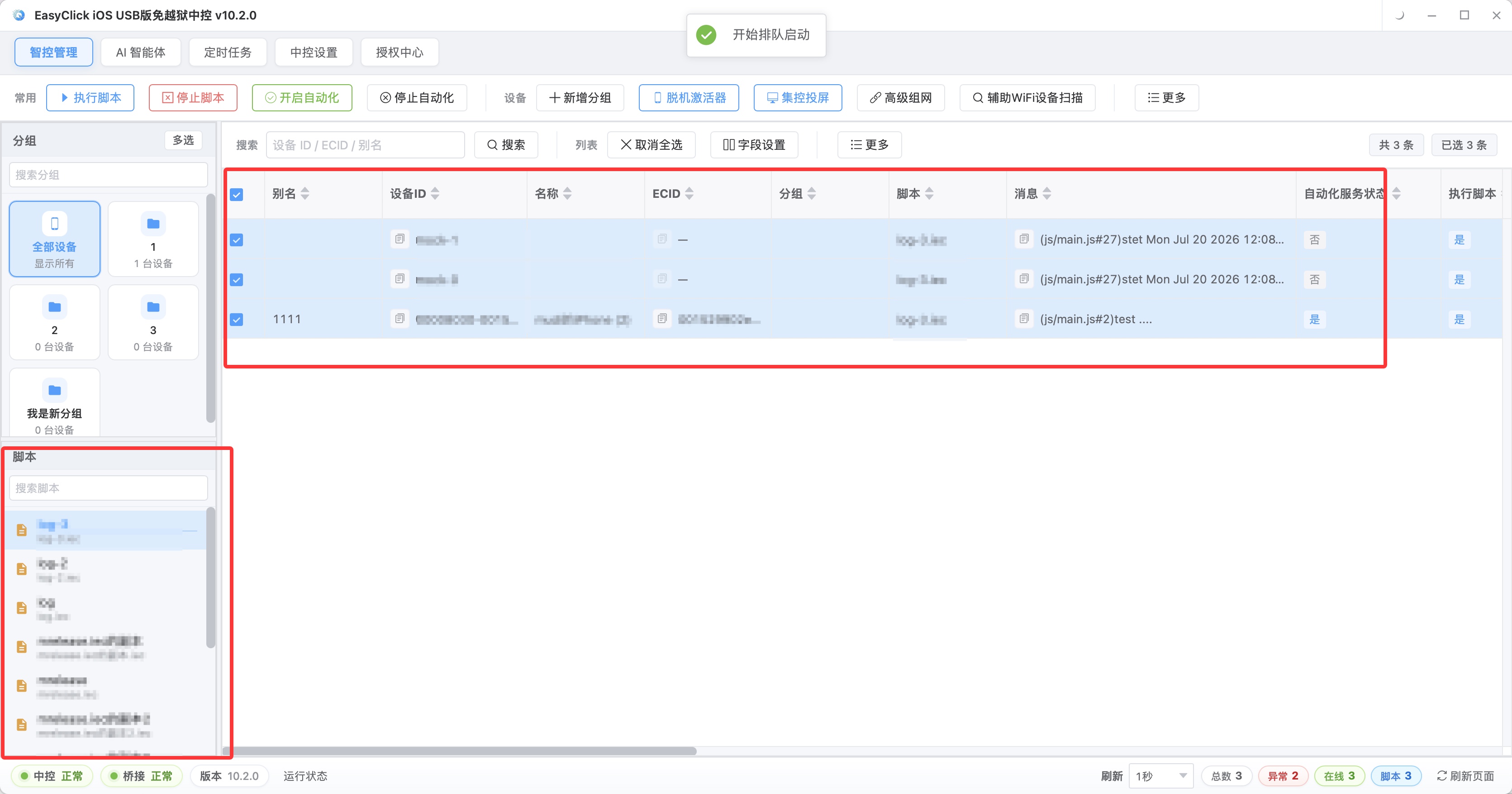
On iOS 15 and later, the offline main program v7.2.0 or later can be used directly as the USB automation service. Import and install the IPA with Aisi Helper, then open “Yidian Cloud Test signed build” or the current main program on the phone. The first open hits app verification and trust.
Trust was not finished
On the phone: Settings → General → VPN & Device Management. Some systems say Device Management. Find the profile or developer app you just installed and tap Trust as prompted.
When you run the proxy service from Xcode and an untrusted prompt appears, the path in the docs is Settings, General, Device Management, select the developer app, and trust apple developement. Until that trust is in place, the service the script depends on will not start, and tapping run in the central control has no follow-up action.
iOS 16 and later also needs Developer Mode, or automation and mirroring fail easily. The entry is Settings → Privacy & Security → Developer Mode. Turn the switch on, restart as the system prompts, and confirm again. Below iOS 16 this item does not exist. In the central control device list you can also right-click that device and choose Enable Developer Mode.
Open the app again after trust. Tap Allow on the permission prompts, or finish them under Permission Grant inside the app.
The Bundle ID is already taken
When you sign with Xcode yourself, after automatic repair under Signing & Capabilities you may see:
Failed to register bundle identifier
No profiles for 'com.ieasyclick.auto.ios' were found
The docs give the cause as the default ID com.ieasyclick.auto.ios already existing. The place to change it is WebDriverAgentRunner, Build Settings, Product Bundle Identifier under Packaging. Change it to a value that is not already taken, then sign and install again. If an old profile is still on the phone, clear it in Device Management before you install the new package. Otherwise the trust list will not match the ID you just changed.
Automation status is not Yes
Back in the central control, confirm USB is connected. Tap Start Automation and wait until the automation status becomes Yes. If it never changes, right-click that device and choose Test Automation, and read the error that comes back.
EC iOS USB 10.7.0 (2026-09-08) also has USB HID. The phone should be iOS 17 or later. It does not need a board, and it is mutually exclusive with Start Automation. One device can take only one path. If you are already on USB HID and you wait for the automation status to become Yes, the status will not light up along that path.
Since EC iOS 10.6.0 (2026-09-02), the AI agent product name is iEasyRun, at https://ieasyrun.com . Before you send a task in chat, those three still have to pass: trust, Bundle ID, and whether automation has started.
About EasyClick: A mobile automation script development platform covering three phone ecosystems: Android without root, iOS without jailbreak, and HarmonyOS. It also offers Apple script writing, Apple cluster control, Android cluster control, remote cloud control, and AI phone cluster control. → Explore all products
Ready to build it for real?
Every approach in this article can be built with EasyClick capabilities on iEasyClick — full documentation, developer tools and automation products, free to try.