A matrix publish stalls when the file names and the trigger times are too uniform. Split the file name on each phone first, then stagger the publish times onto different minutes. Write both on the same sheet.
Put the device, the account, and the date in the file name
One phone, one Douyin account. The first two columns of the sheet are the device number and that account. Rename the video before it goes onto the phone. Do not keep the original name from the asset drive.
A base file name can look like this:
device-number_account_date_index
The video is that name plus .mp4. The caption is the same name plus .txt. The index starts at 1. Write whichever piece it is that day. The date is the day it goes out, which is separate from the day it was edited.
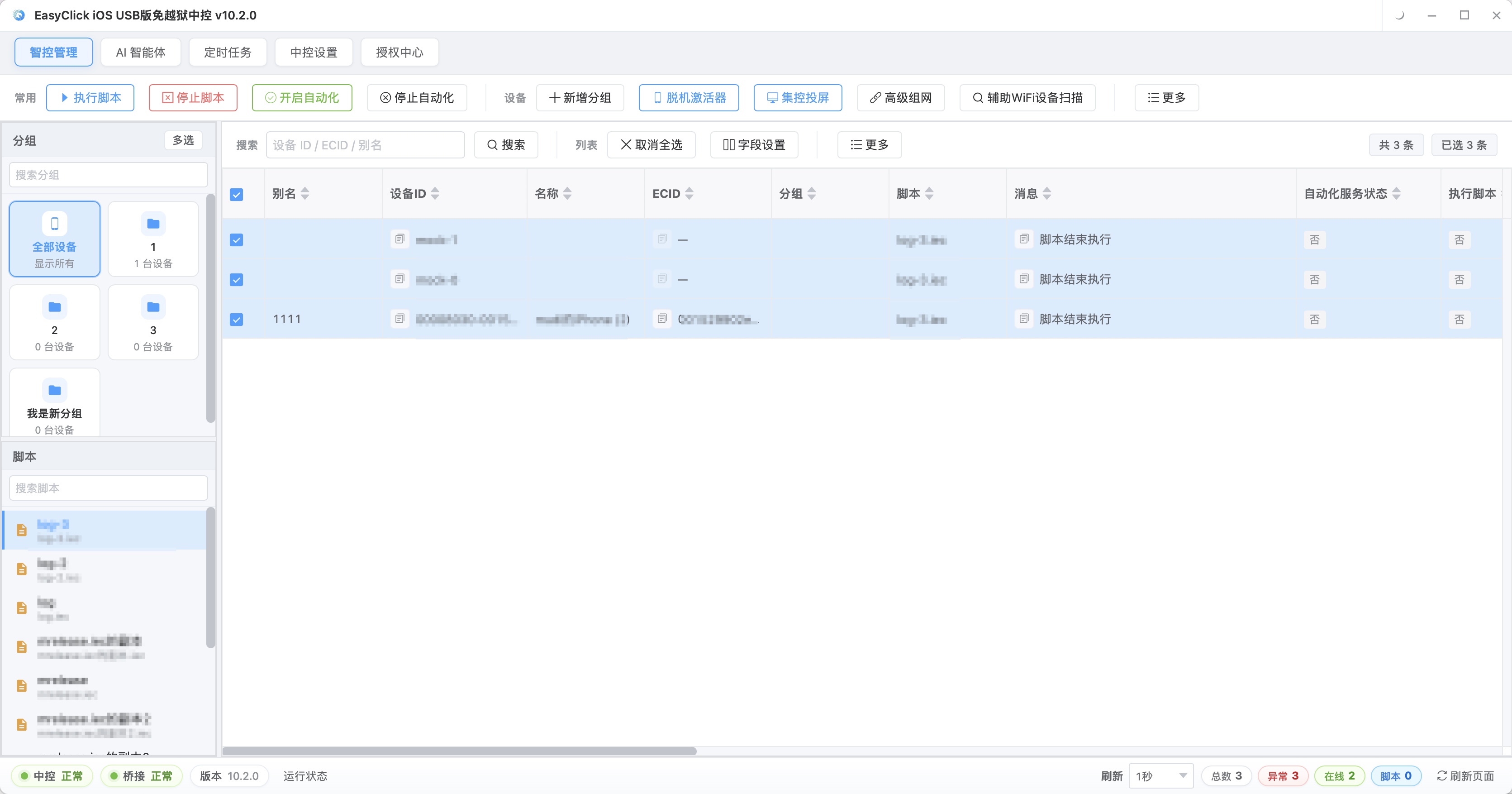
The central control device list and groups are how you find that machine. A group name cannot stand in for the file name. If ten phones in a group still receive final.mp4, the execution log only shows that the script ran. It does not show which asset it was.
The original cut can live in a shared folder. When you copy it out, rename it from the sheet, and write the caption separately per account. If the title, cover, and caption are identical on every phone, changing only the file name does nothing. The platform still sees the same piece. At least make the body of the caption file different per account, and keep that file next to the video.
After a failure, re-upload only that index on that phone. Do not sync the whole day’s folder to every phone again. On devices that already succeeded, leave the file where it is or move it to “sent,” so the next round of the script does not scan it again.
Write the publish time as an offset per device
The last column of the sheet is the minute offset. You set the base time, for example 10:00. The first phone is +0, the second +6, the third +13, and the rest keep using different numbers. There is no shared “safe value,” and the product docs do not provide that kind of interval. What helps is a different number on each phone, written on the same row as the file name.
The scheduled task is that phone’s base time plus the offset. Do not create one task, tick every device, and set them to the same moment.
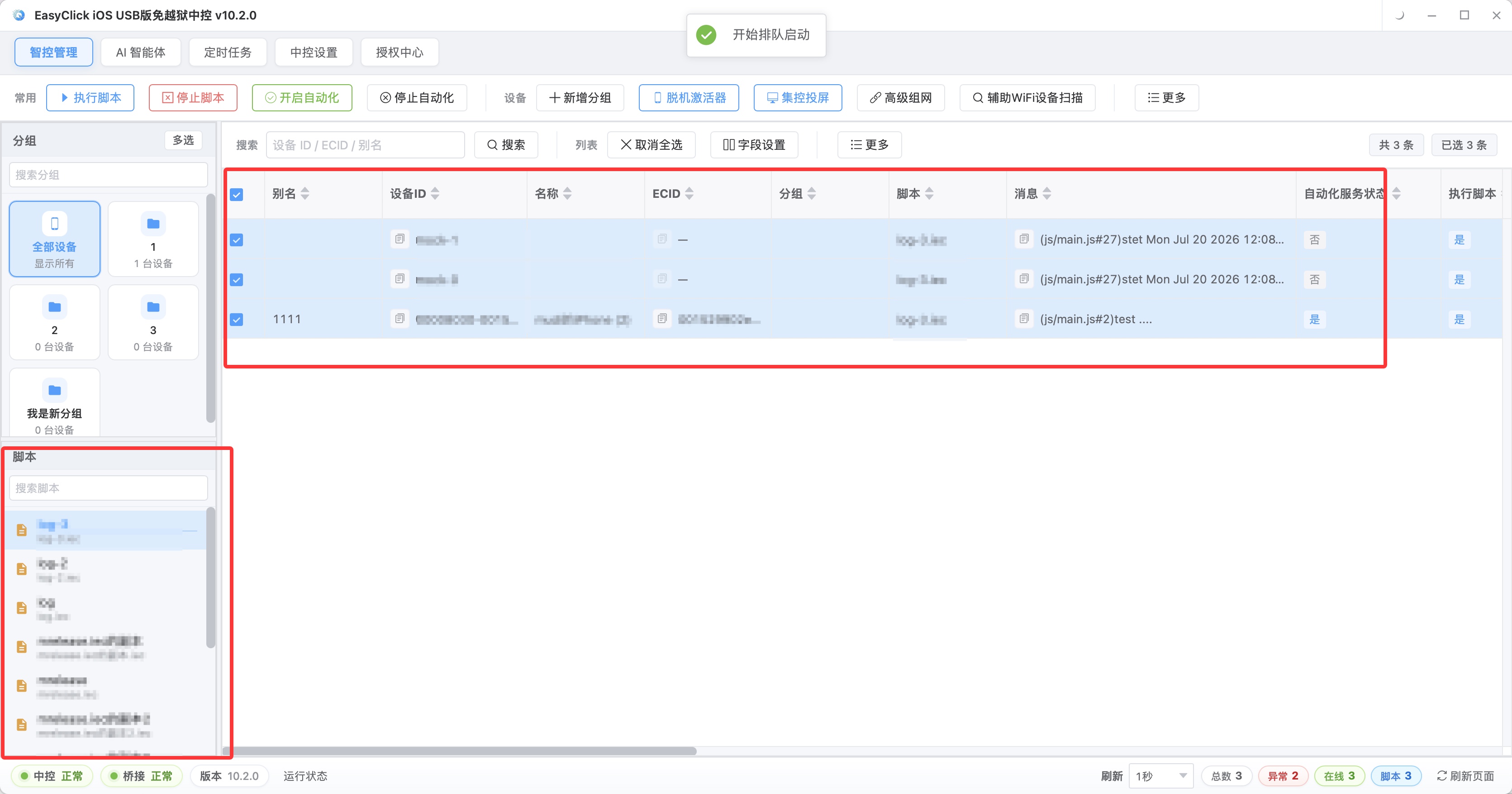
The script takes that day’s index from the file name and, when the time hits, sends only that one. The next piece uses the next index and the next time slot, still on that phone’s own row. If a phone stops for the day, note the device, the index, and the clock time that was planned. Next time, fill only that row. Do not pull the other phones’ times back to the same minute.
If the logged-in account does not match the account in the file name, stop that phone, change the login or the file name, and then let the scheduled task fire. Logging a second account onto the same phone means a new row and a new set of files. Do not switch accounts and send two pieces in the same minute.
About EasyClick: A mobile automation script development platform covering three phone ecosystems: Android without root, iOS without jailbreak, and HarmonyOS. It also offers Apple script writing, Apple cluster control, Android cluster control, remote cloud control, and AI phone cluster control. → Explore all products
Ready to build it for real?
Every approach in this article can be built with EasyClick capabilities on iEasyClick — full documentation, developer tools and automation products, free to try.