How no-root splits the work
Early scripts mostly started with root. su for the highest privilege, then Xposed or direct edits to system files. That path still exists. The cost is a voided warranty, higher security risk, and poor compatibility after a system upgrade. Some apps detect root and refuse to run.
What people use day to day now is interfaces the system itself exposes. The accessibility service (AccessibilityService) reads UI nodes and injects taps and input. ADB does installs, settings, and file operations, the system commands. Neither changes the system, and neither goes through a root check. Deployment, compatibility, and compliance all cost less. The decision is how to pair accessibility with ADB.
| Dimension | Accessibility service | ADB |
|---|---|---|
| Official status | Official system API | Official system tool |
| Core ability | Simulate tap / swipe / input, read UI elements | Install apps, file operations, system commands |
| How it locates | By control id / text / description / coordinates | Coordinate-level commands (input tap/swipe) |
| Fits | In-app operations, business scripts | Device initialization, batch management |
| Permission | The user turns accessibility on by hand | USB debugging on, and the computer authorized |
| Stability | Depends on UI elements staying stable | Stable at the command level |
| Runtime | A resident service on the device | Needs a computer or a debug channel |
The two paths look at different layers. Accessibility runs above the system process and gets UI meaning: each button’s id, text, description, position, and whether it can be tapped. The script can find a button by name. ADB sits at the system-command layer. It does not look at how the screen is drawn. It looks at whether the app is installed, which permissions are on, and which screen is current. The usual pairing is: ADB handles the work before you are in, installing apps, granting permissions, setting the network, and keeping screenshots; the accessibility script handles the business taps after you are in. From a bare phone to a runnable business flow, the order is usually batch install over ADB, batch grant, start accessibility, the script runs the business, and ADB pulls the results back.
The runtime shape differs too. Accessibility stays resident on the phone and keeps running after the computer disconnects, which fits a device executing on its own. ADB depends on the debug channel between computer and phone, which fits the computer issuing commands together. If the phone has to run offline on its own, use accessibility. If every task starts from one computer, start with ADB and hand execution to accessibility. That is easier to control.
How to keep the accessibility service steady
Accessibility automation splits into three steps. After the service is on, the system pushes events when the screen changes or content changes, and the script uses that to know which page it is on. Next it reads the control tree. AccessibilityNodeInfo holds the tappable elements on the current page: id, text, description, package name, and the clickable flag. Last, it injects a tap, long press, swipe, or input on the target node.
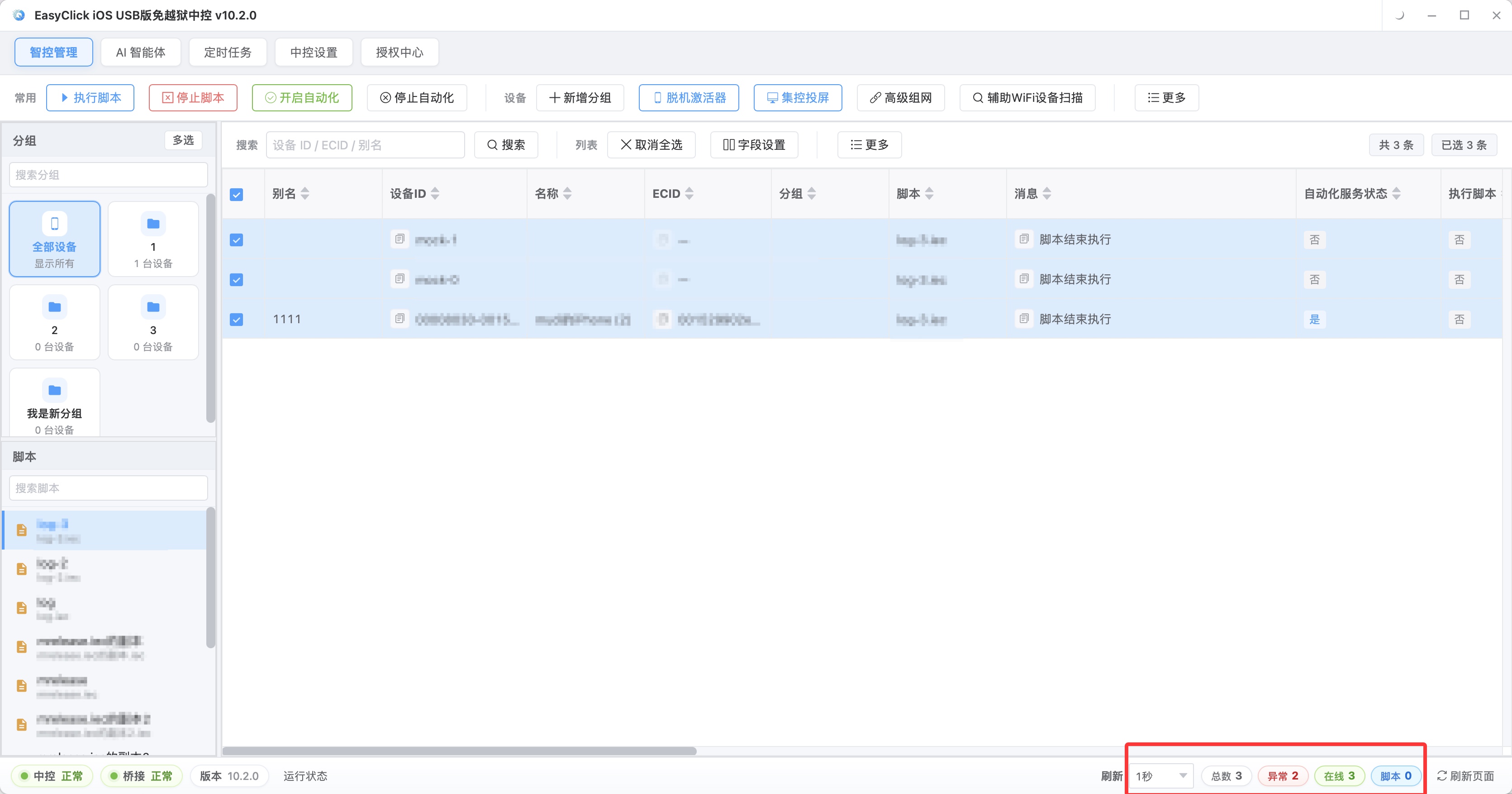
In the EasyClick central control you can see a detailed log for each step: current page state, the control ID that was found, the injected action type, and the result. When a step fails, the log records the reason to the second. You do not have to flip through each phone screen.
Stability starts with how you locate. The order is control id, then text, then description, and coordinates last. Id is the most stable, and it can still change on a version upgrade. Text is direct, and duplicates need an index. Description fits icon buttons. Coordinates are the fallback, and a layout change can make them tap empty space. Pages have animation and network delay, so the node often appears later than the picture. Wait for the element: poll the node tree until it is clickable or the wait times out. A fixed sleep does not cover that gap. Some vendors turn the accessibility service off when memory is tight. The script needs a liveness check, and it should bring the service back if it drops.
After the screen locks, accessibility can do less. Some systems allow injection to continue after lock, and vendor policy is not uniform. For a task that must run with the screen off, try it on a real phone first, and put waking the screen into the script. Accessibility events arrive asynchronously. From the moment an element appears until it can be tapped, there are often a few hundred milliseconds to a few seconds. The engine polls whether the node is ready on top of the event callback, which avoids empty taps. A recorded script that runs and still is not stable is usually stuck here.
ADB handles what sits outside the UI
ADB skips the UI and sends system commands. It fills in what accessibility cannot do:
| Command class | Common commands | Typical case |
|---|---|---|
| Install / uninstall | adb install, adb uninstall | Batch-install apps, reset the environment |
| Permission management | adb shell pm grant/revoke | Batch-grant runtime permissions |
| App control | adb shell am start/force-stop | Start or close a given app |
| Input commands | adb shell input tap/swipe/text | Coordinate tap, swipe, input |
| Screenshot evidence | adb exec-out screencap | Keep a record of the run result |
| File transfer | adb push/pull | Push scripts, pull data back |
| Connection management | adb devices, adb connect | Check status across devices |
Initializing one device in batch goes in this order: turn on developer options and USB debugging, connect the data cable to the computer and authorize it, confirm adb devices can see it, batch-install, batch-grant, start accessibility, send one test command to confirm the channel, then run scripts in batch. Looping that across dozens of devices is the smallest flow that can close a batch initialization. Authorization is one-time. A new computer, a new port, or a system reset means tapping it again. Batch setups need a connection-status check. input commands go by coordinates, and they do not replace accessibility finding controls. Wireless debugging (adb tcpip) can drop the cable. The device and the computer must be on the same network, and the network has to be stable. If the IP changes, adb connect has to run again. Before batch use, pin the IP, or let central control keep the connection list.
What it can and cannot do, and how to choose and land it
No-root covers batch taps, swipes, and input, plus OCR for controls that cannot be read; reading UI elements, with conditions, loops, retries, and branches; batch-installing apps, granting permissions, and changing device parameters; schedules, unattended runs, and failure alerts; and, with cluster control or central control, managing dozens to hundreds of devices. What needs root is changing system files (hosts, system apps, boot items), kernel-level operations and deep hooks, and deeper bypasses of some apps with strong anti-automation. Those last items are not recommended, and they are not compliant. In-app interaction and ordinary system operations are enough without root. Changing system files or touching the kernel is where root comes into the picture. Most business automation is the first kind.
| Scene | Recommended setup | Notes |
|---|---|---|
| Everyday business scripts, in-app operations | No-root (accessibility) | Semantic location is stable, and it fits long chains |
| Batch device initialization | No-root (ADB) | Commands are stable, batchable, and fast |
| Automation testing | No-root (real-device testing) | A real device is closer to reality, with no flashing |
| System-level modification | Only then consider root | Not recommended. Risk and compliance cost are high |
Landing it takes five steps. First pick one flow that is frequent, fixed in its steps, and low risk. Prepare a test phone, turn on developer options and USB debugging, and finish authorization. Use one very simple command, such as launching an app, and confirm both channels are open. When you write the script, locate by control first, and leave in waits, retries, and screenshots. After it runs on one device, connect central control or cluster control for batch dispatch and result collection.
Stability depends on how you locate and whether you have waits and retries. It has little to do with whether the phone is rooted. A rooted phone written entirely in coordinates still breaks when the layout changes. Most business never needs to change system files, and no-root is enough. Accessibility is an official API. Risk comes mainly from the use. Gray-market work is dangerous on any stack. Risk also comes from the app’s own anti-automation policy. Coordinates fail the most easily. Resolution, layout, and dialogs can all make them tap empty space. Whether injection can continue after lock depends on the vendor. If the task must run with the screen off, verify it on a real phone first.
About EasyClick: A mobile automation script development platform covering three phone ecosystems: Android without root, iOS without jailbreak, and HarmonyOS. It also offers Apple script writing, Apple cluster control, Android cluster control, remote cloud control, and AI phone cluster control. → Explore all products
Ready to build it for real?
Every approach in this article can be built with EasyClick capabilities on iEasyClick — full documentation, developer tools and automation products, free to try.