How far no-root goes: capability limits and two layers of sensing
People meeting Android phone automation for the first time usually ask three things: is this a cheat tool, does it need root, and what can it actually do? Android automation combines official system capabilities: the accessibility service (AccessibilityService) reads the UI and injects actions, ADB runs system-level commands, and the app layer adds image recognition and a script engine. These are interfaces the system already provides. They do not modify the system, and they do not depend on root. No-root is the default for Android automation today. Most business work does not use root.
From there, the capability line is straightforward. In-app interaction and ordinary system operations are covered without root. Changing system files or touching the kernel is where root comes into the picture. Batch taps, input and collection, condition checks, scheduled tasks, and unattended runs do not need root. Deep hooks and system modifications sit outside compliance, and they are not a reason to choose a stack.
The remaining question is which layers sit under one automation script, from reading the screen to running many phones together. The six layers below are how it sees, how it recognizes, how it taps, how it runs, how you write it, and how you scale it. Each layer uses the EasyClick Android edition as the example (official docs).
Control location looks up names in the control tree and does not memorize screen coordinates. The earliest automation scripts were coordinate scripts: record (x, y) and tap that point. Change the resolution, shift the layout, or pop a dialog, and every coordinate is useless. Android builds a control tree for the current screen. Each button, input field, and image has an id, text, description, class name, package name, and bounds. The script finds the control by name:
// Find the button by text, and wait for it if it is missing (up to 5 seconds)
let node = text("立即领取").waitExistNode(5000);
if (node) {
    node.click();
} else {
    loge("未找到按钮");
}
Selectors also support id, desc, regular expressions, AND/OR combinations, and sync helpers such as “does this control exist” and “wait until the node appears” (selector and node docs). Acting after the element appears makes the script much steadier. Fall back to coordinates only when the UI truly has no control to read. Mature platforms support a random tap inside a coordinate region. Coordinates are only a fallback.
When the control tree is unavailable, as in game screens, custom-drawn controls, and image buttons, there is no standard node to read, so the script looks at the screen. Recognition has three levels:
| Method | How it works | Typical case |
|---|---|---|
| Image and color search | OpenCV template matching, multi-point color search, color-block search | Locate image buttons, icons, and fixed color blocks. The vendor states a recognition rate of 95%+ |
| OCR text recognition | On-device OCR engine reads on-screen text | Read dialog copy, button labels, and captcha-like content |
| Object detection | YOLO neural network locates objects | Recognize in-game monsters, items, characters, and other non-text objects |
Image matching fits fixed icons, OCR fits text on the screen, and object detection fits objects with no text. On EasyClick, the image layer is the image API family (findImage / findColor / multi-point color search). The OCR layer includes PPOCR-V4 / V5 / V6, all free and recognized locally offline. V6 needs Android 8.0 or later; older versions automatically use V5 (OCR docs, PPOCR notes). The object-detection layer integrates YOLO, optimized for phones with ncnn (YOLO docs). Recognition runs on the device. It works without a network, private data stays on the device, and there is no per-call fee.
How taps run
Once a target is recognized, what actually performs the tap? Android automation has four execution channels:
| Run mode | How it works | Feature range | Fingerprint |
|---|---|---|---|
| Accessibility mode | System accessibility service injects actions | All features | Software fingerprint of the system accessibility service |
| Proxy mode | A computer or proxy service performs the actions | All features | Depends on the computer or proxy channel |
| Bluetooth HID | ESP32 Bluetooth peripheral emulates a human-interface device | Image matching / OCR / Bluetooth tap and swipe | No software fingerprint, no accessibility, no USB debugging |
| OTG HID | USB wired HID device | Image matching / OCR / OTG tap and swipe | No software fingerprint, no accessibility, no USB debugging |
Accessibility mode has the fullest feature set, and it leaves the software fingerprint of the system accessibility service. HID does not inject through software. A development board that costs a few dozen yuan (ESP32-S3/C3, firmware free) or a small HID host (driver-free, low cost, on the order of a hundred yuan) presents itself as a keyboard or mouse. Automation still works without accessibility and without USB debugging (HID host docs, Bluetooth HID, OTG HID, HID mini host). The limit is that the HID channel can only use image matching, OCR, taps, and swipes. Complex node reads and text input depend on accessibility or proxy mode.
Compliance note: the accessibility service and HID are both officially exposed capabilities, and they are legal on their own. The risk line is the use. Gray-market play is dangerous on any stack. For compliant use, see the phone cluster-control compliance guide.
A finished script still has to be deployed, updated, and kept from being taken. Offline standalone runs: the script can run without the computer and without the IDE. Leave the device plugged in and it keeps doing the task, and you can publish it on its own to end users (product overview). Local offline packaging: the project is packed into an installable package on the machine, entirely locally, with nothing uploaded to the cloud. Compared with cloud packaging, the script source does not pass through a third-party server. Code hot update: a script update does not require reinstalling the APK. Updating the code is enough for it to take effect (hot-update docs). Anti-crack and license distribution: JS obfuscation plus a second compilation pass, then a network-verification platform for card keys and licenses (code obfuscation, network verification). Local packaging, offline distribution, hot update, and card-key licensing can be chained into one delivery path.
What you write scripts in, and how far AI helps
Android automation scripts are written in JavaScript, and every Java library can be called directly. The development environment is an IDEA plugin. After you install the EasyClick plugin and create a script project, a USB-connected phone (with USB debugging on) gets the runtime APK installed automatically. Right-click to preview the UI and run the script. The IDE has a log window and live screen sync. On newer IDEA builds (2026.2 and later) you do not activate IDEA. Install the plugin and use it (first project tutorial). Open the project in Cursor, Trae, or another editor that supports large models. After the AI reads the project structure and the SKILL docs, the CLI compiles, runs, takes screenshots, and captures nodes:
| CLI subcommand | Role | What the AI receives |
|---|---|---|
build |
Compile the project | Compile log |
preview / run / stop |
Preview, run, stop | Run log, error text |
capture-screen |
Capture a device screenshot | Screen image |
capture-node |
Capture UI nodes (UIX) | Control-tree structure |
ocr-screen |
OCR the current screen | On-screen text |
test-image |
Test image-template matching | Recognition test result |
The AI can see the screen, grab nodes, read OCR results, and analyze errors. You describe “tap this button away” in plain language, and the CLI closes the rest of the loop (AI-assisted coding docs). The docs can also be installed into the project in one step (“Install AI DOCS”), or you can hand the doc links to the AI so it generates code against the current API.
How to scale, and a scenario picker
When one phone running a script is not enough, management falls into three bands:
| Form | Reach | Core ability | Scale reference |
|---|---|---|---|
| Single-device script | One device | Script runs locally offline | 1 device |
| Central-control mirroring | LAN | Phone mirroring, live monitoring, script and parameter management, synced actions | About 100 devices per machine |
| Cloud-control platform | Any network | Cloud task dispatch, remote mirroring, cross-site networking, data reporting | About 500 devices per machine |
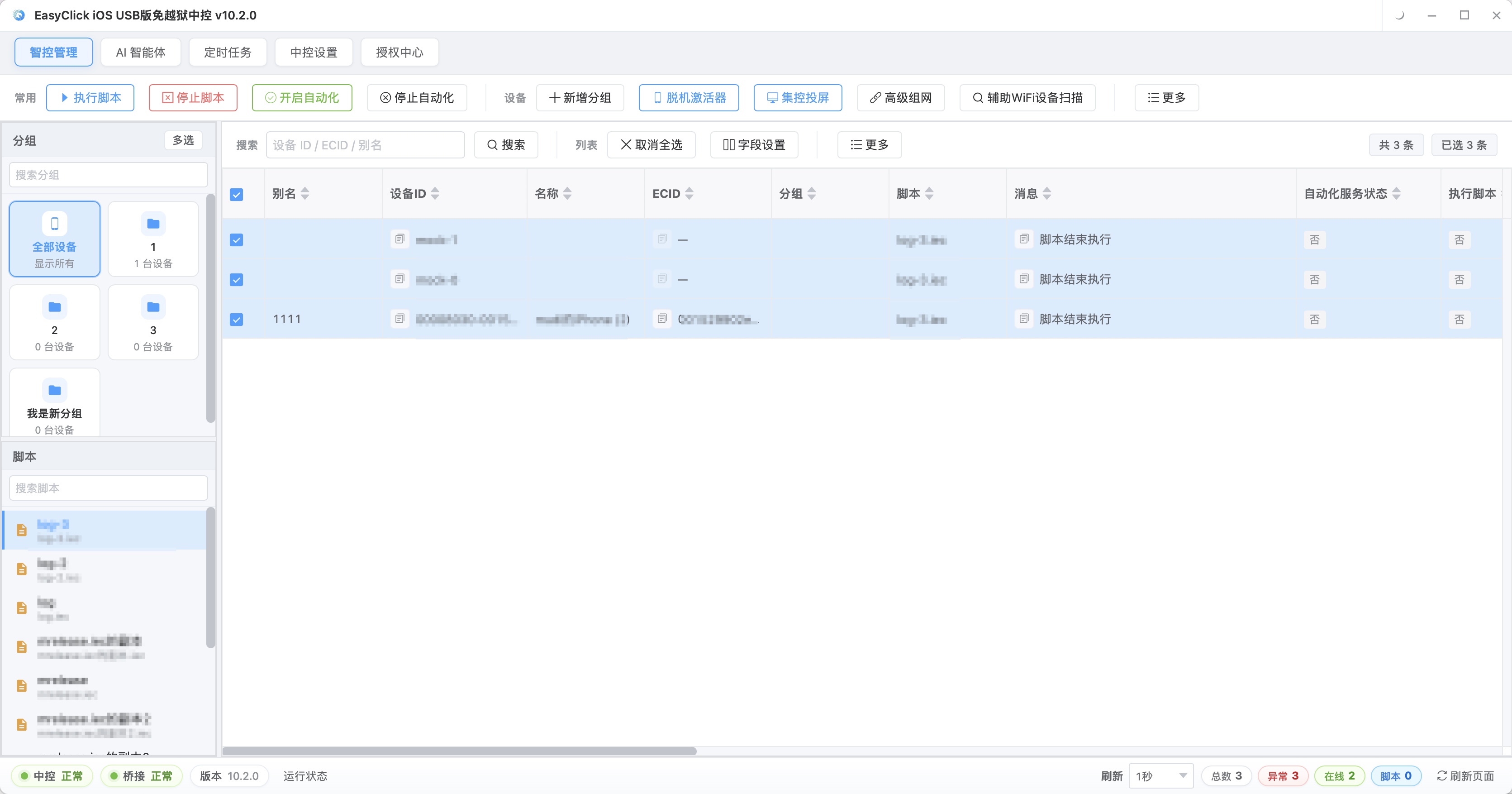
Central-control mirroring fits devices on one LAN. One computer manages the phones, mirrors each screen live, pushes scripts and parameters together, and runs actions in sync (central-control mirroring docs). Cloud control connects devices to the cloud and runs around devices, scripts, tasks, and data. After a device is numbered it connects to the cloud on its own. The cloud pushes the script for a task to the device. The script reads task parameters with getTaskInfo(), and data produced at runtime is reported live. You mainly manage tasks and parameters (cloud-control docs). This cloud-control description matches 3.11.0 and later, and EC client 9.4.0 and later. The demo site username and password are test123 / test123. Remote devices, remote mirroring, and batch maintenance all sit in this band.
Pick a stack by scenario:
| Your scenario | Recommended combination |
|---|---|
| Single-device automation, personal scripts | Accessibility mode (full features) + local packaging and offline runs |
| Batch work that is sensitive to risk control | Bluetooth HID / OTG HID + image matching / OCR |
| A dozen or so devices in one place | Central-control mirroring + batch dispatch of accessibility scripts |
| Multiple sites, a scaled team | Cloud-control platform + task and data management |
| Selling scripts commercially | Local packaging + hot update + code obfuscation + network verification |
| Writing scripts with AI | Any large-model IDE + CLI + one-click AI DOCS install |
For a finer choice, use the selection guide. It recommends an on-device execution plan plus central control and cloud control for the business shape, and it outputs a plan summary you can copy.
About EasyClick: A mobile automation script development platform covering three phone ecosystems: Android without root, iOS without jailbreak, and HarmonyOS. It also offers Apple script writing, Apple cluster control, Android cluster control, remote cloud control, and AI phone cluster control. → Explore all products
Ready to build it for real?
Every approach in this article can be built with EasyClick capabilities on iEasyClick — full documentation, developer tools and automation products, free to try.